
A.N.AC. Services Portal
Version: 1.0.0
Last Updated: 10/23/2023
The A.N.AC. Services Portal includes some of the online services currently provided by the Authority.
Structure
The entry point to the A.N.AC. online services portal is its homepage, consisting of a header, a main area, and a footer.
Header

Figure 1 - Header
It consists of three sections:
- The initial header containing, on the left, the portal name with the service name in which the user is navigating (on the portal's homepage, the user is in the "Online Services" section). On the right, there's a possible icon for notifications (if authenticated), a language switch menu, and the button to access the reserved area labeled "Log in."
- The main header containing the name and logo of ANAC.
-
The navigation header (navigation menu) containing the top-level navigation entries categorized into the following topics:
Anticorruption- contains services related to the anti-corruption area.Transparency- contains services related to the transparency area.Public Contracts- contains services related to public contracts area.
Main Area
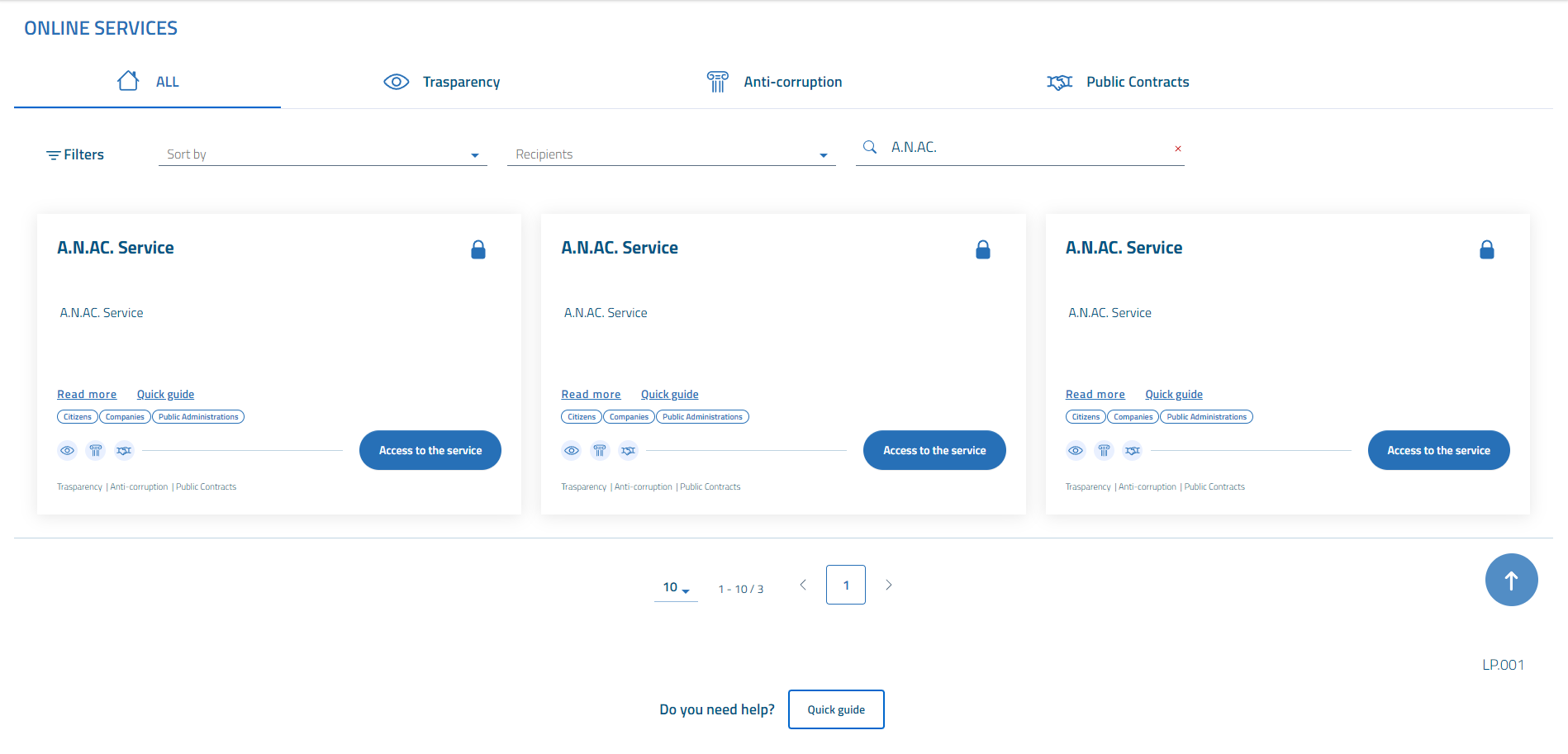
Figure 2 - Main Area
It includes:
- A page header containing the title of the page, "Online Services."
- A paginated list of available online services with the possibility to categorize them by topics or perform searches using filters.
- Links to the portal's "Quick Guide" or individual service guides.
This section, in the case of accessing a service, will display the content of that service.
Footer
It is composed of a series of links and contact information for ANAC.
Notifications
This section appears in the top right after logging into the portal or one of the services, identified by the "bell" icon. It allows previewing the latest notifications or accessing all notifications by clicking on See all notifications.
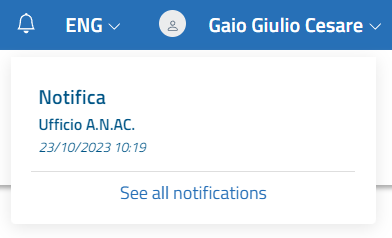
Figure 3 - View Notifications
The Notifications page consists of the following sections:
- Filters
- Your notifications

Figure 4 - Notification Filters
The filters section allows filtering notifications by publication date, read or unread notifications, and searching by sender.
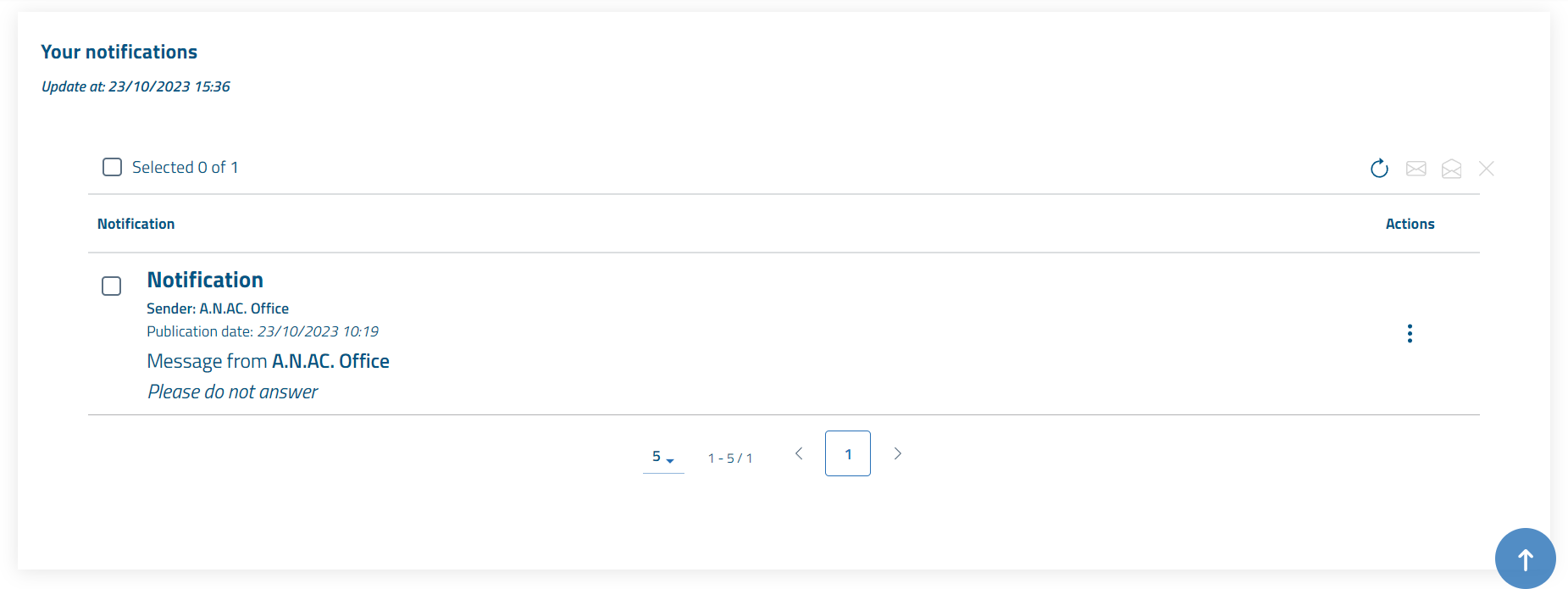
Figure 4 - Your Notifications
The "Your Notifications" section presents the last update date, the list of received notifications in chronological order, and possible actions that can be taken on the notifications.
Additionally, above the list of notifications, there are several buttons:
 The checkbox on the left allows you to select all notifications.
 Allows you to update the list of notifications.
 Allows you to mark selected notifications as "read."
 Allows you to mark selected notifications as "unread."
 Allows you to delete all selected notifications.
The actions that can be performed by selecting  on an individual notification are:
- Detail
- Mark as read/mark as unread
- Delete
The "Detail" action opens a summary that allows viewing the sender, publication date, and message. Clicking the close button at the bottom right will return to the list of notifications.

Figure 5 - Notification Detail
Language Switcher
This section in the top right allows changing the language. The currently supported languages are Italian, English and German language, with Italian being the default but can be changed at any time during navigation.

Figure 6 - Language Switch
Log in to the Portal
It is the section in the top right allows accessing the portal by clicking "Login." Once logged in, the name and surname of the authenticated person will be presented, with the possibility to:
- View the roles in their possession
- Log out

Figure 7 - User
For more information on accessing services, refer to the dedicated online guide.
Information Notice
This section appears before the list of services, in case notices have been published on the portal or individual service.

Figure 8 - Information Notice
An information notice consists of the following information:
- Publication date of the notice
- Title of the notice
- Content of the notice
Online Services
This section appears in the central part of the portal and contains the paginated list of all services currently accessible through the portal.
Figure 10 - Online Services
Each service is represented in a "Card" structured as follows:

Figure 11 Service
- Title: at the top left, identifying the service.
- Padlock: at the top right, indicating if it is a service with authentication. If the padlock is not present, the service is freely accessible.
- Description: below the title, containing a brief description of the service.
- Useful Links: below the description, including:
- "What it's for," which opens the page on the ANAC institutional website containing a detailed description of the service.
- "Quick Guide" that opens the Online Guide page for the individual service.
- Recipients: below "Useful Links," indicating the recipients for whom the service is intended (possible recipients: Citizens, Businesses, Public Administrations).
- Topics: below "Recipients," indicating the topics to which the service is related (possible topics: Transparency, Anticorruption, Public Contracts).
- Access Link: access link to the service.
Search for a Service
A service can be searched for in one of the following ways:
- Through the navigation menu
Figure 12 Navigation Menu
- Using the filters on the homepage

Figure 13 Homepage Filters
Through the tab at the top, you can filter services by topic. Using "Sort by" allows sorting services by title. Using "Recipients" allows filtering services based on the recipient's type, or using "Search Services" to search for a service by title.
Access the Service
It is possible to access a service directly by first identifying the card containing the requested service and then selecting "Access the Service" in the identified card. For more information on how to access the services, please refer to the dedicated online guide.
Quick Guide
This section appears at the bottom center of the portal's homepage or the individual service page.
Figure 14 - Quick Guide