
Personal Area
Version: 1.0.0
Update date: 13/03/2025
The “Personal Area” service is dedicated to users registered on the ANAC portal.
Service description
The user can manage their personal and contact data, their profiles and their delegations, the activities in charge using the functions made available by the service:
- Your Activities
- Your Profiles
- Your Delegations
- Your Data
- Change Password
- Edit OTP
The Personal Area service can be reached in the ANAC services portal via the appropriate card or via the dropdown menu available on the username logged in at the top right. In both cases you access the Your Profiles functionality by default.
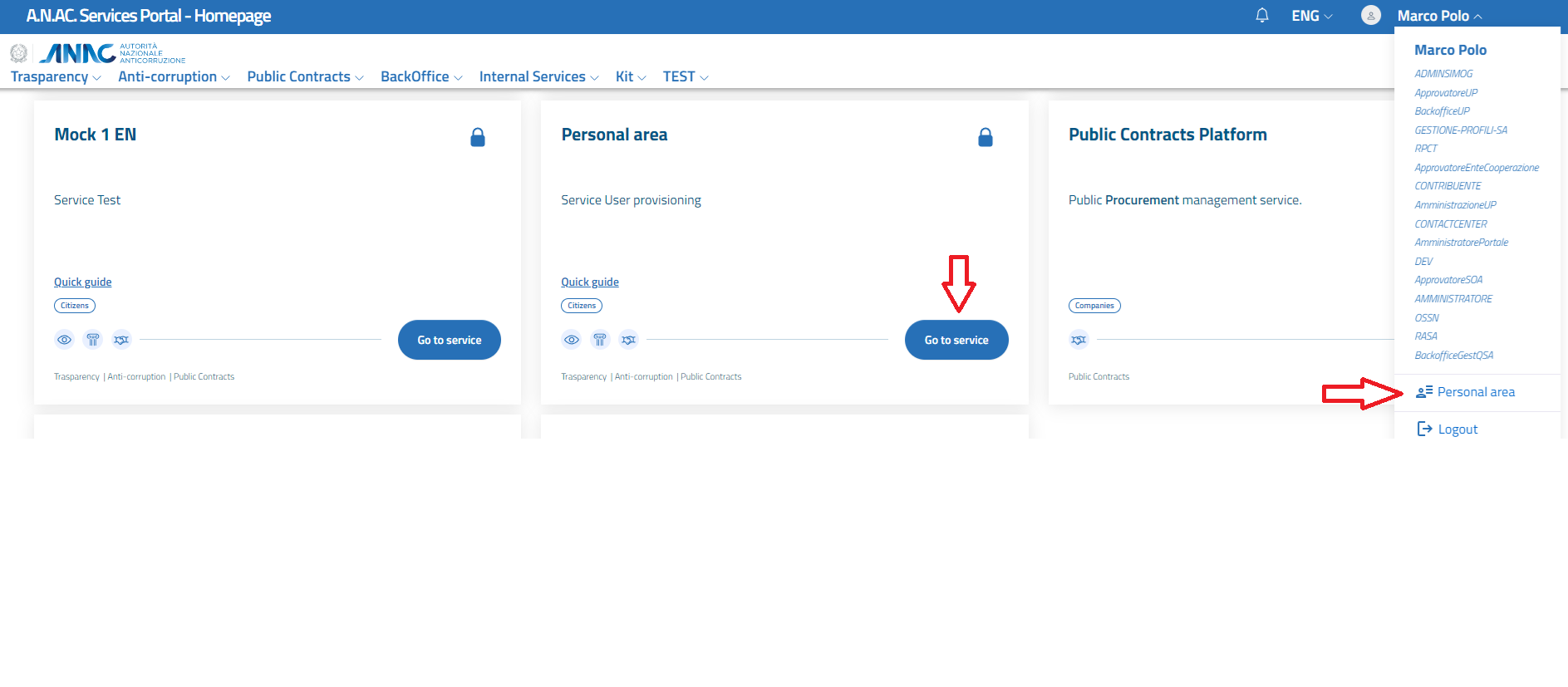
Figure 1 - Access to the Personal Area
Your Profiles
The Your Profiles functionality displays the latest activities to be carried out at the top, regarding profile requests and delegations, which are the responsibility of the user and below the complete list of his profiles, with the possibility of creating a new profile via the New' button profile +.
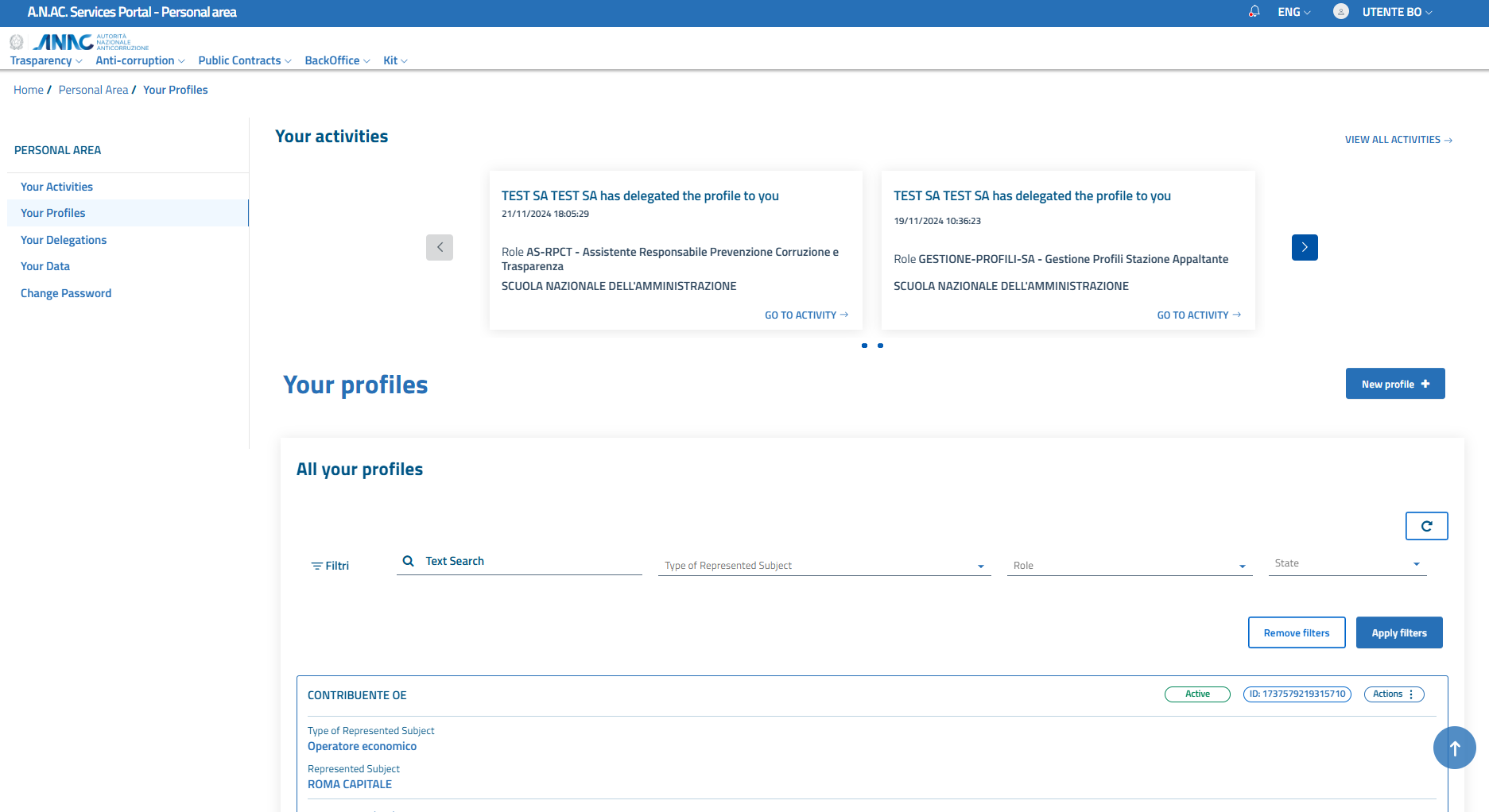
Figure 2 - Your Profiles
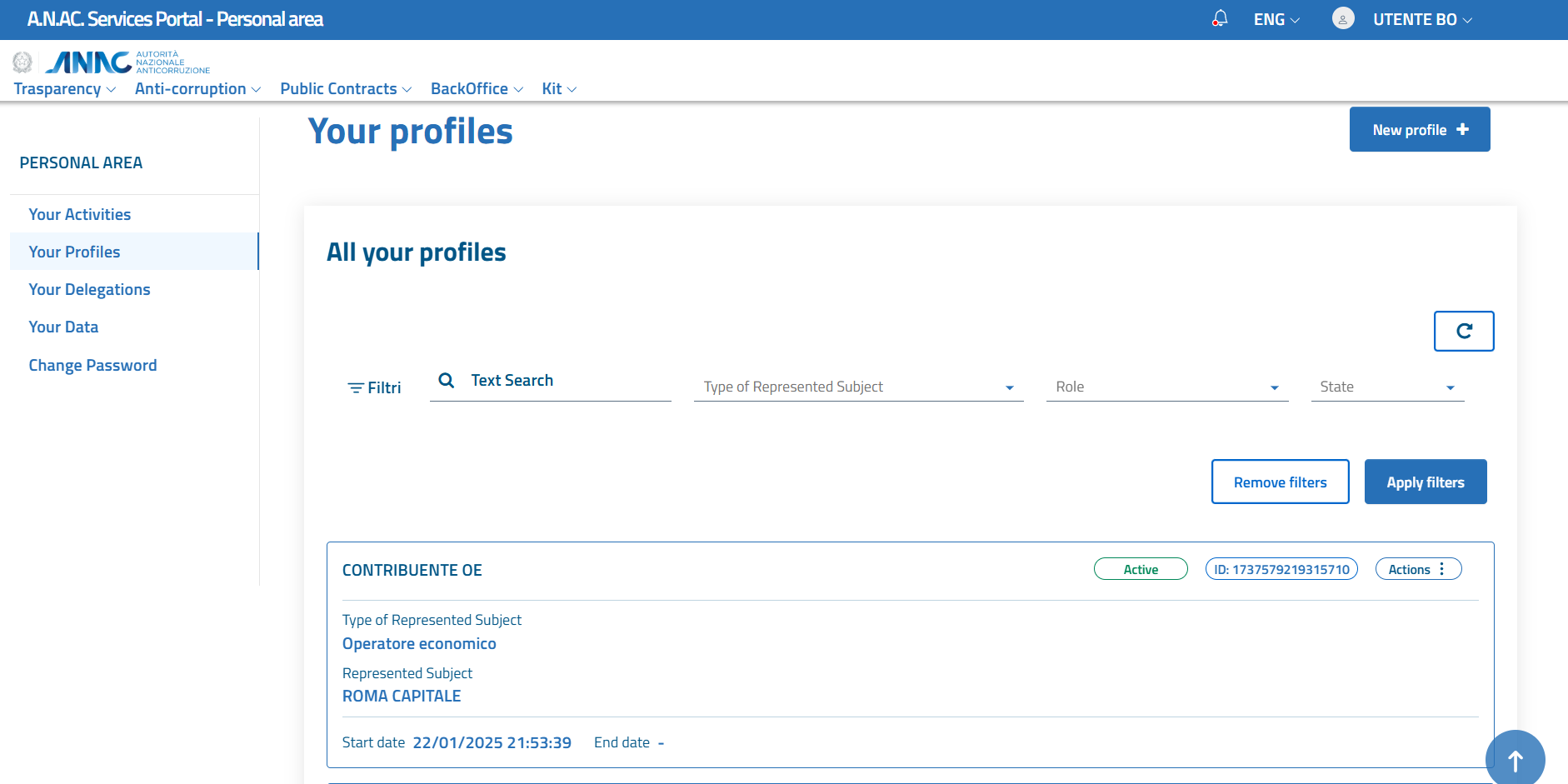
Figura 2.1 - I Tuoi Profili Dettaglio
It is possible to view all activities using the Your Activities feature or via the appropriate link at the top right VIEW ALL ACTIVITIES. To access the details of the individual activity, the specific link on the individual card GO TO ACTIVITY is available.
On the All your profiles page list you can apply the following filters:
- Text search: to filter on the name of the Represented Subject
- Type of subject represented: to filter by choosing a single type of subject represented from the proposed list
- Role: to filter by choosing a single role from the proposed list
- State: to filter by choosing a single state from the proposed list
Each profile is represented by a card that displays the following information:
- Role
- Type of subject represented
- Subject represented
- Status (chip with colored text depending on the status)
- Profile ID (chip with text)
- Actions (chip with access to the list of available shares)
The action that is always available is Details and History while the other actions are available depending on the profile status.
A profile can have one of the following states:
- Under approval: profile that has not yet completed the approval process and therefore is not available to operate on the services
- Active: profile that has completed the approval process and is therefore available to operate on the services
- Suspended: profile that has completed the approval process with subsequent suspension by the authorized person and therefore temporarily unavailable to operate on the services
- Closed: profile closed and therefore no longer available to operate on services
New profile
Using the New profile + button, a window opens that allows you to request a new profile through a sequence of activities aimed at collecting the information necessary for the chosen profile.
The first choice to make is the type of subject represented.
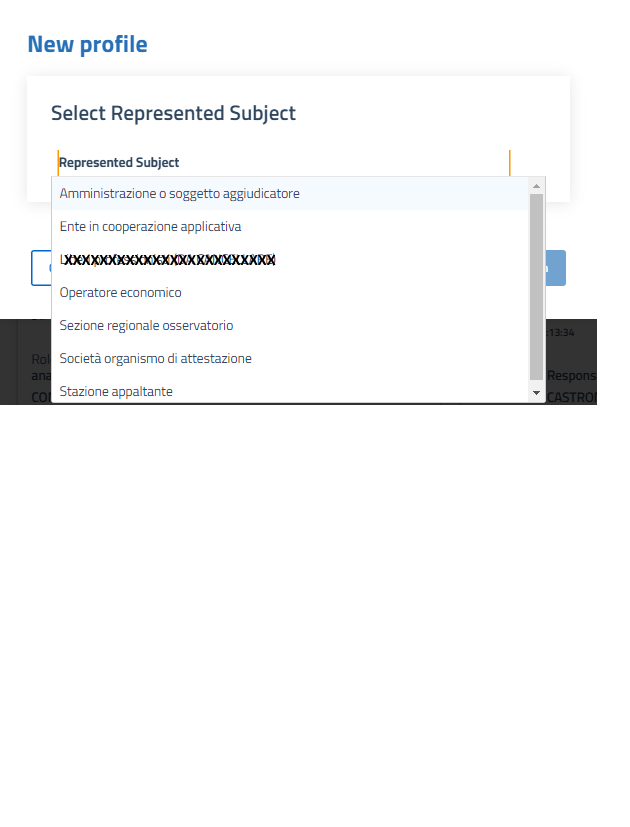
Figure 3.1 - New profile - Selection of the represented subject
Depending on the type of subject represented chosen, the possible roles will be displayed.
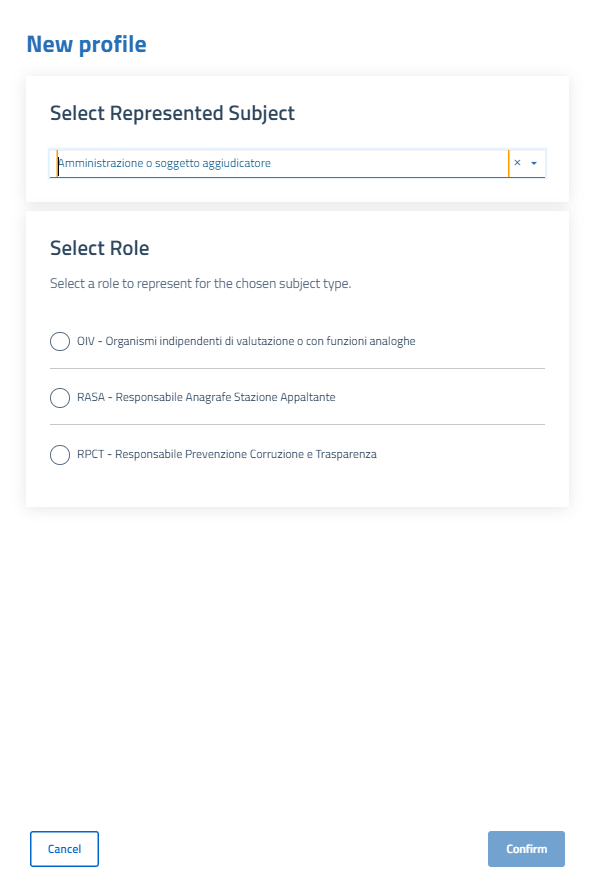
Figure 3.2 - New profile - Role selection
Una volta scelto il ruolo tramite il pulsante Conferma si accede alla schermata di immisisone delle informazioni specifiche per il ruolo selezionato.
Action - Detail and history
By selecting the Detail and history action you access a page that displays in 2 tabs the detailed information on the profile and the history of the events that have occurred in descending order of date (from the most recent to the oldest).
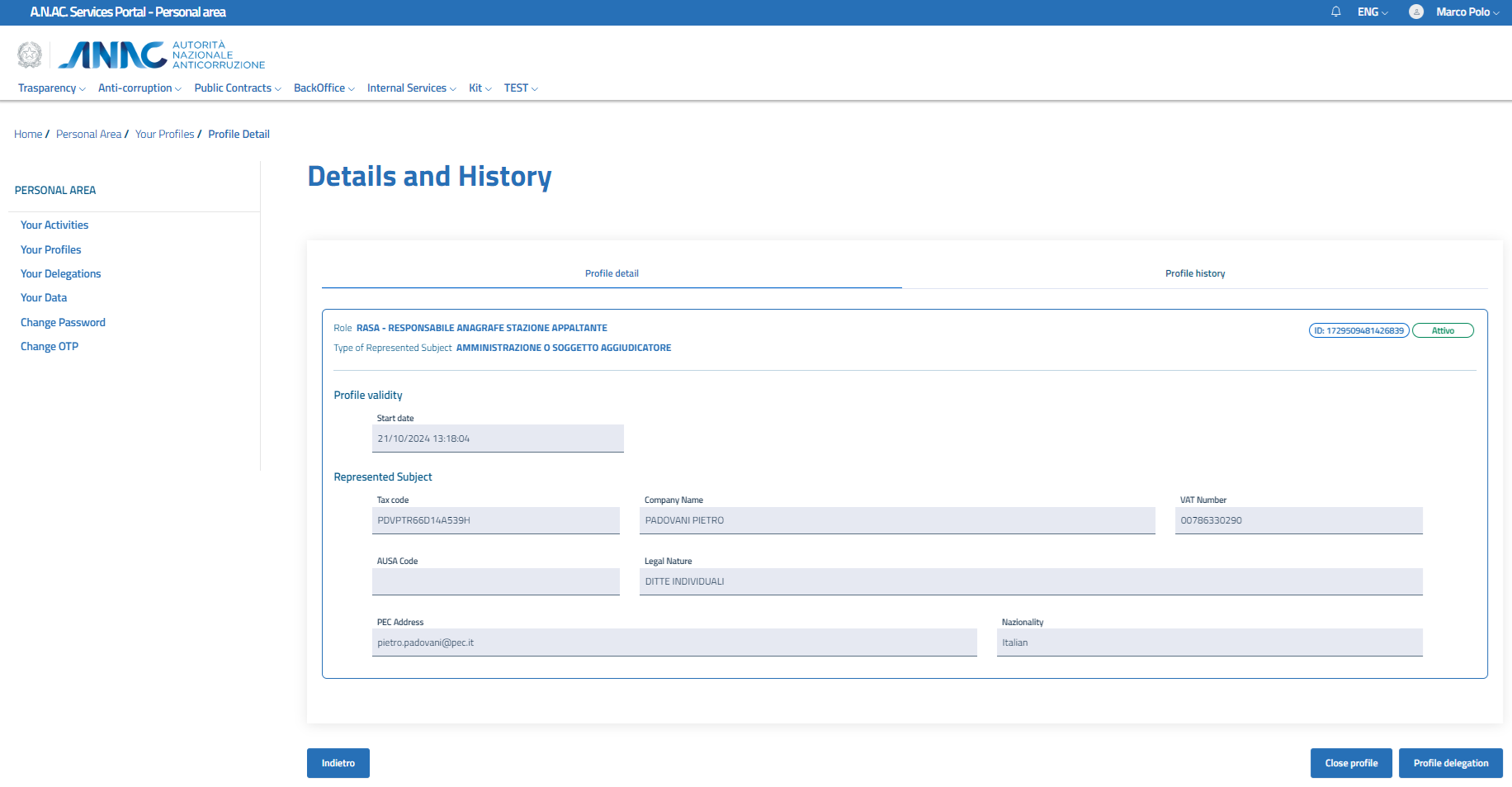
Figure 4.1 - Profile detail
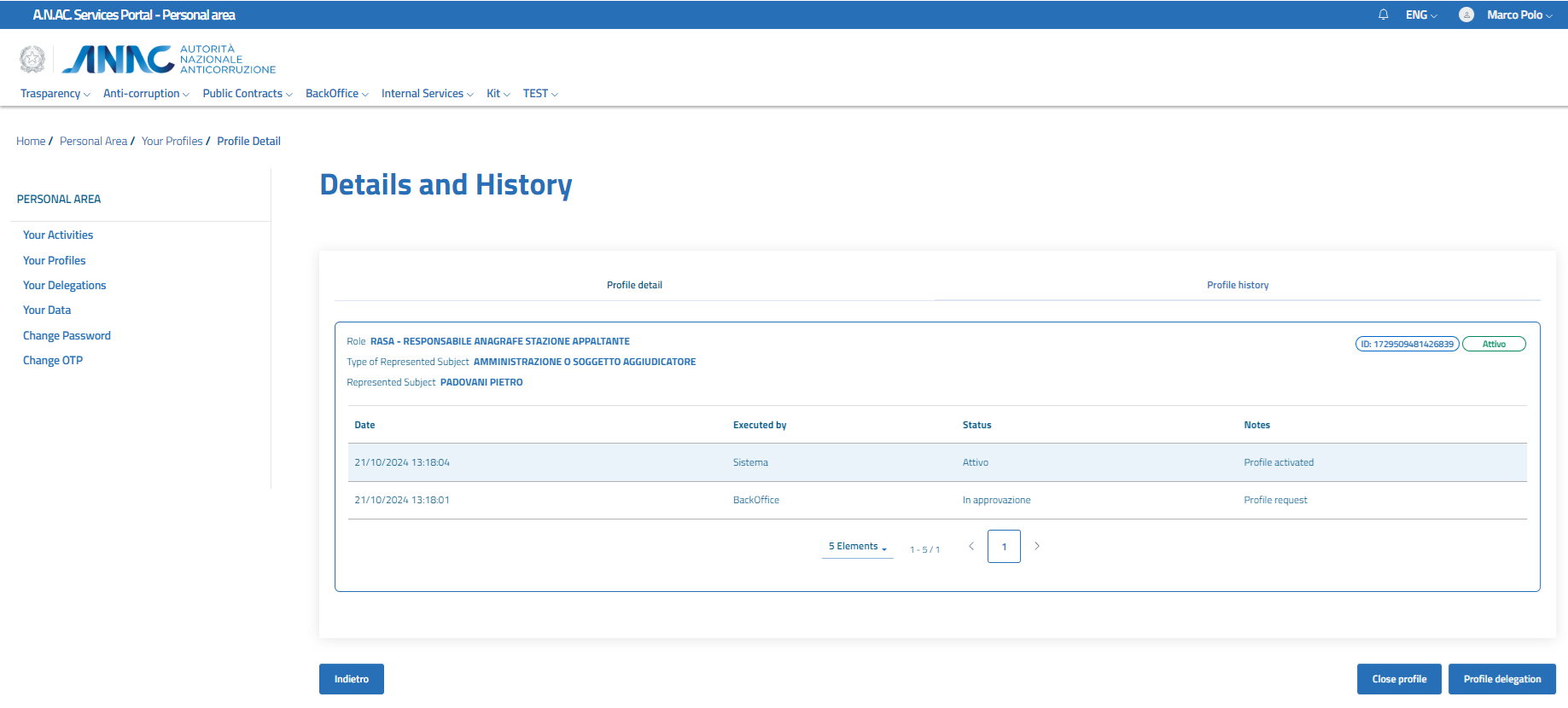
Figure 4.2 - Profile history
On this page there are buttons for the actions available for the selected profile.
For example, for a profile in active status, as shown in the image, the Close profile and Delegate profile buttons may be available.
Action - Delegate profile
By selecting the Delegate profile action or using the relevant button in the Details and history, you access the screen that allows you to delegate the selected profile to another person.
The first choice to make is the profile to delegate.
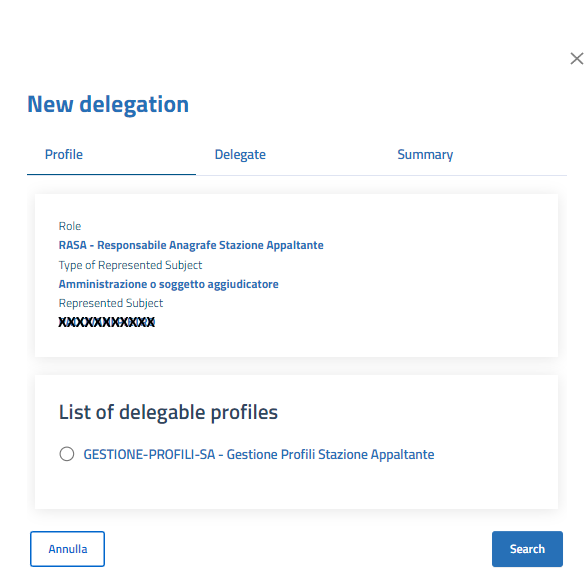
Figure 5.1 - Profile delegation
Once the profile has been chosen, the delegate must be searched for via tax code.
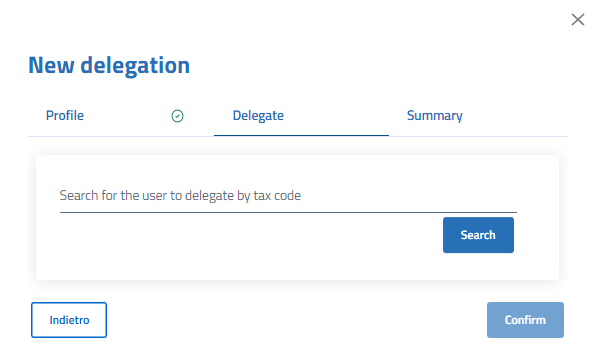
Figure 5.2 - Profile delegation - delegate search
Once the delegate has been chosen, the validity period of the delegation must be configured. The start date is mandatory while the end date is optional. If not set, the delegation does not expire.
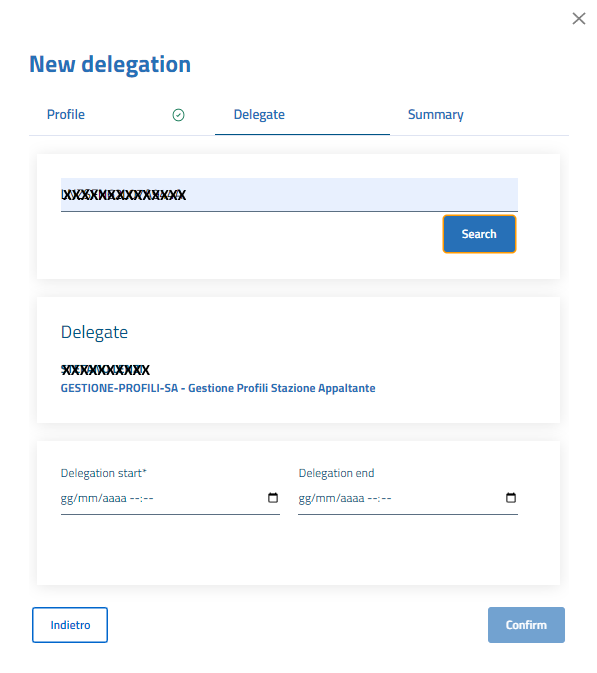
Figure 5.3 - Profile delegation - validity period
Finally, the summary of the delegation is proposed and to confirm the operation it is necessary to press the Create delegation button.
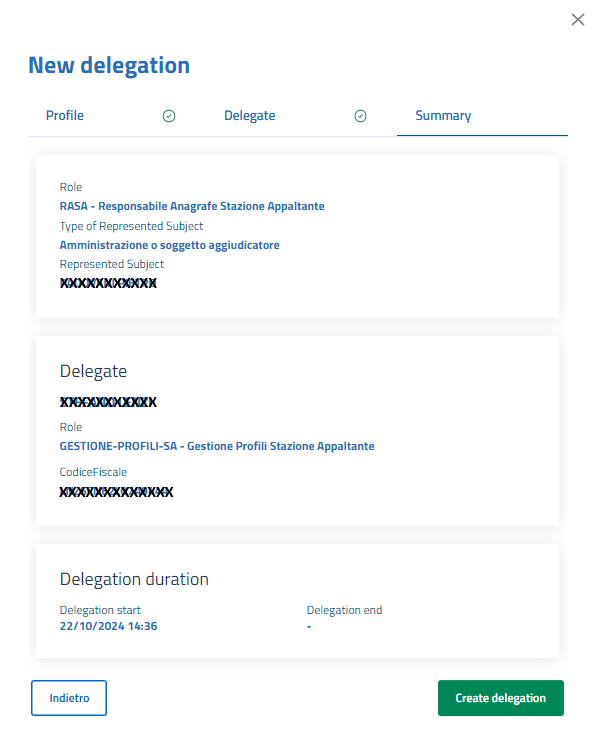
Figure 5.4 - Profile delegation - summary
Action - Close profile
Selecting the Close profile action displays a confirmation message "Are you sure you want to close your profile?" with the Cancel and Close buttons
Your Activities
The Your Activities functionality displays the complete list of activities carried out by the user with the possibility of accessing the detail of the individual activity to complete it.
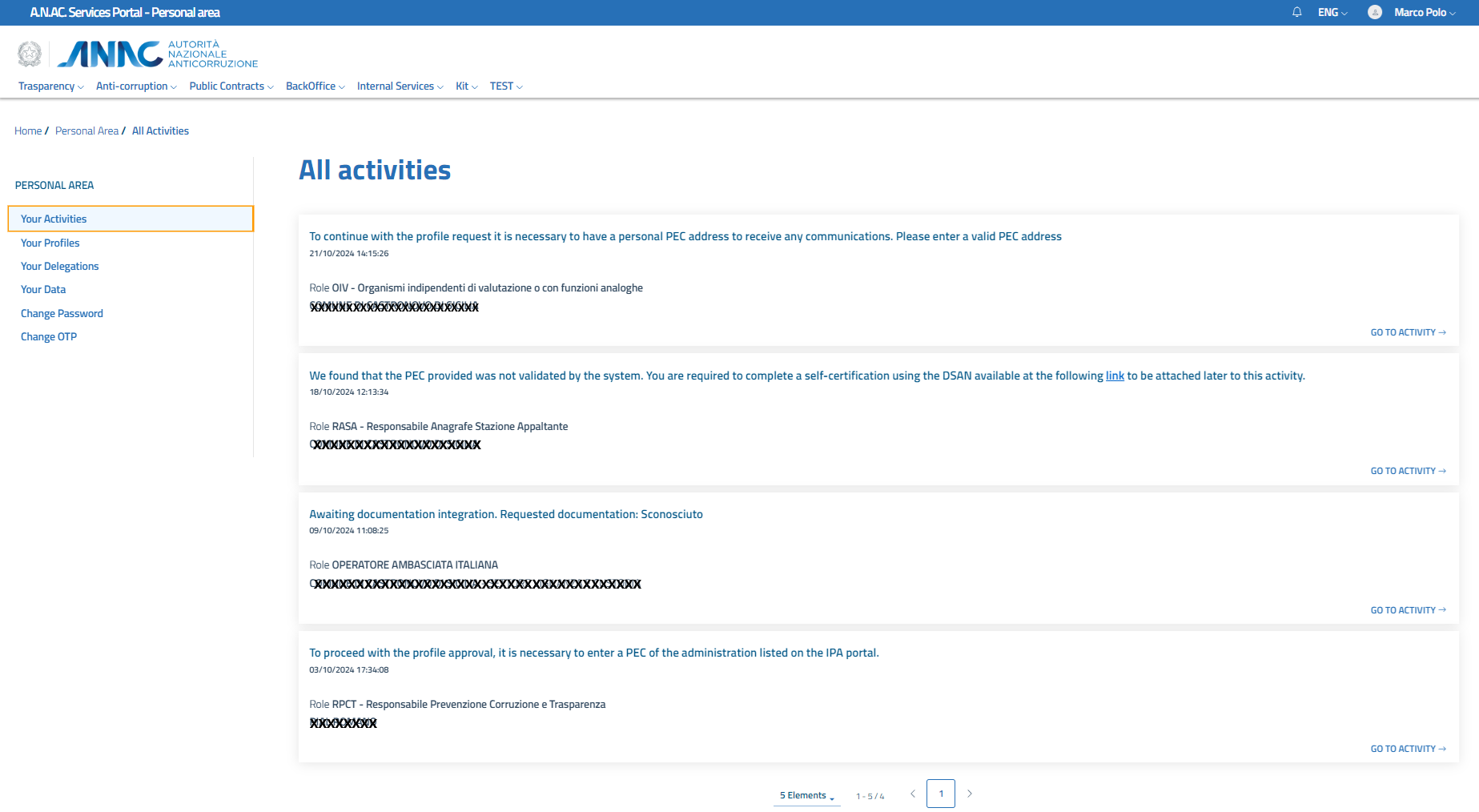
Figure 6.1 - Your Activities - list
In the activity detail it will be possible to complete the activity via the Complete button.
Depending on the task you may need to attach a file before you can complete the task.
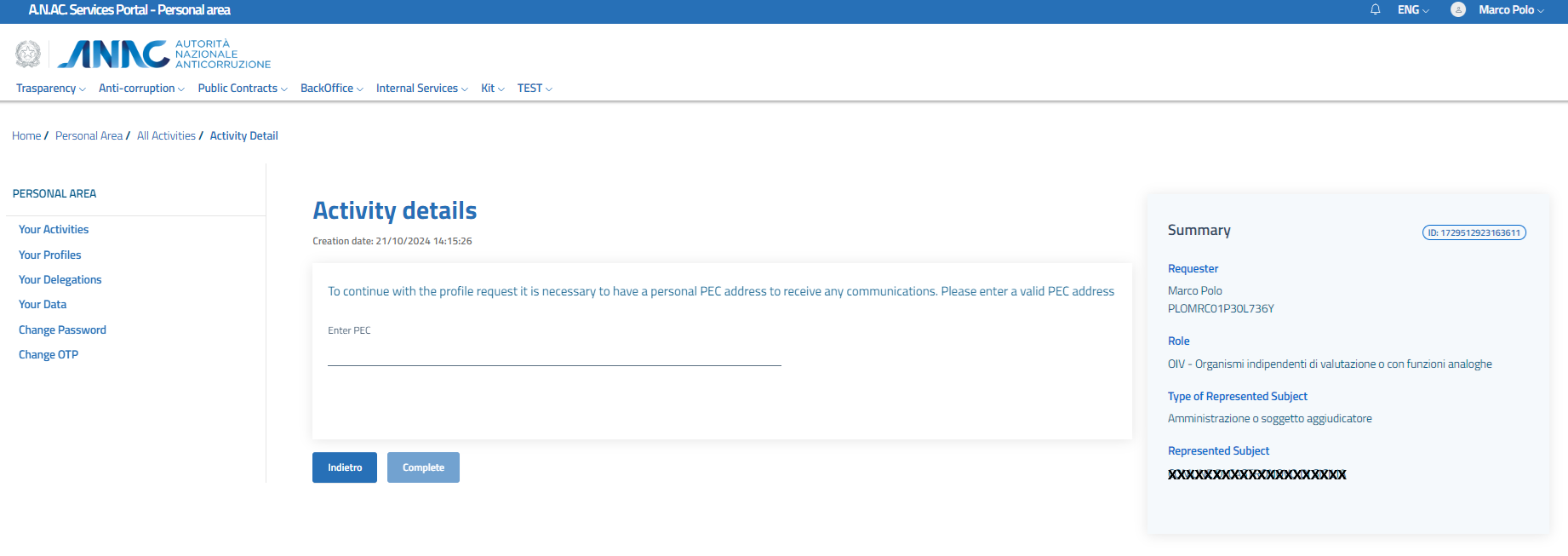
Figure 6.2 - Your Activities - detail
Your Delegations
The Your Delegations function displays the latest activities carried out by the user at the top and below in two tabs with the list of delegates received and the list of delegates released.
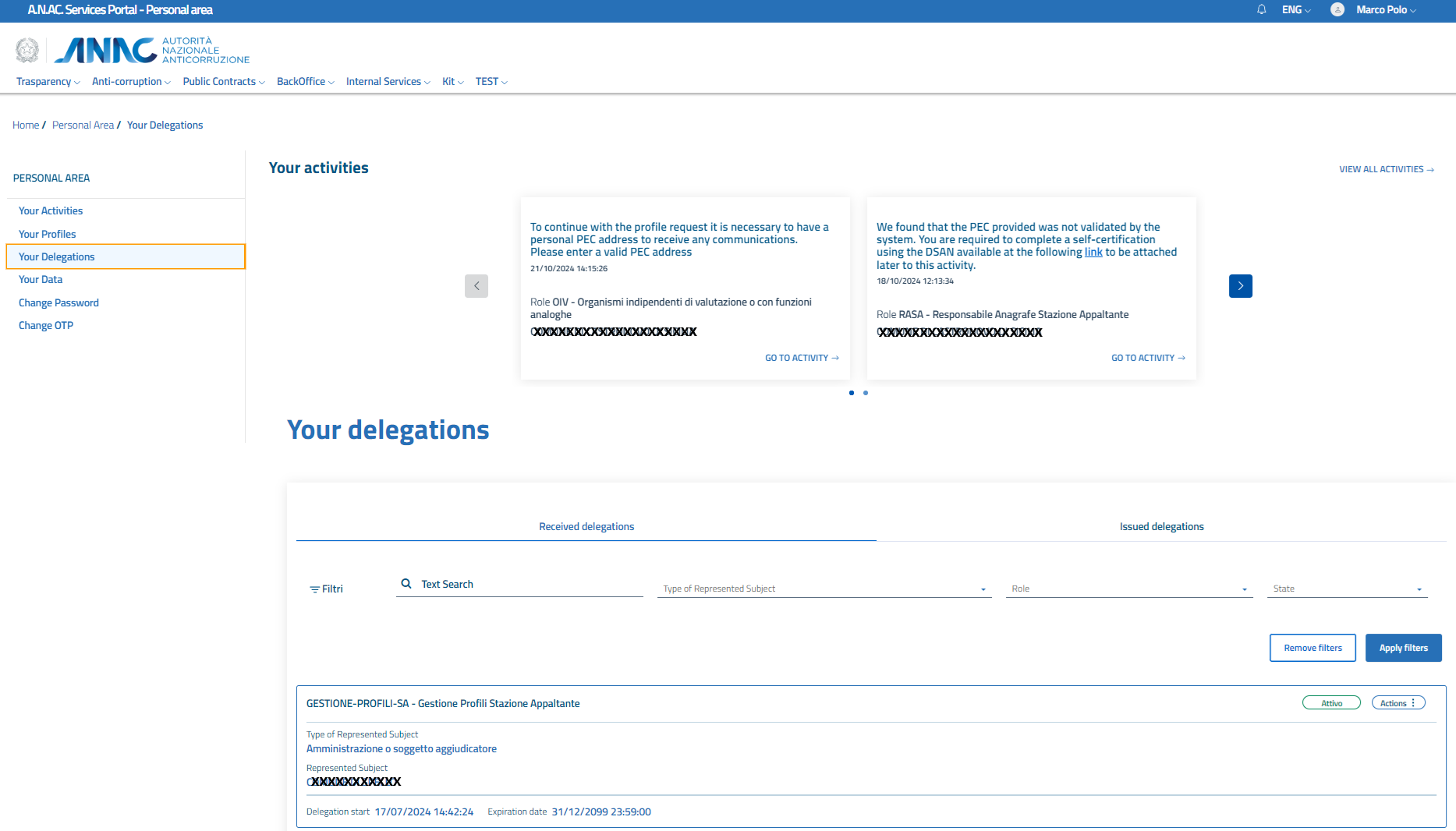
Figure 7.1 - Your Delegations - Delegations received
It is possible to access the Your Activities function via the appropriate link at the top right VIEW ALL ACTIVITIES or you can access the details of the activity via the appropriate link on the single card GO TO ACTIVITY .
The following filters can be applied to the paged lists present in both tabs:
- Text search: to filter on the name of the Represented Subject
- Type of subject represented: to filter by choosing a single type of subject represented from the proposed list
- Role: to filter by choosing a single role from the proposed list
- State: to filter by choosing a single state from the proposed list
Each delegation is represented by a card that displays the following information:
- Role
- Type of subject represented
- Subject represented
- Delegate (in the Delegations issued tab)
- Delegator (in the Delegations Received tab)
- Status (chip with colored text depending on the status)
- Delegation ID (chip with text)
- The dates: Start of delegation, Expiry date and depending on the status Suspension, closure, reactivation date
- Actions (chip with access to the list of available shares)
A delegation can have one of the following states:
- In approval: delegation that has not completed the acceptance process by the delegate and therefore is not available to operate on the services
- Active: delegation that has completed the acceptance process and is therefore available to operate on the services
- Suspended: delegation that has completed the acceptance process with subsequent suspension and therefore temporarily unavailable to operate the services
- Closed: delegation closed and therefore no longer available to operate on services
The always available action is Detail and history while the other actions are available depending on the delegation status.
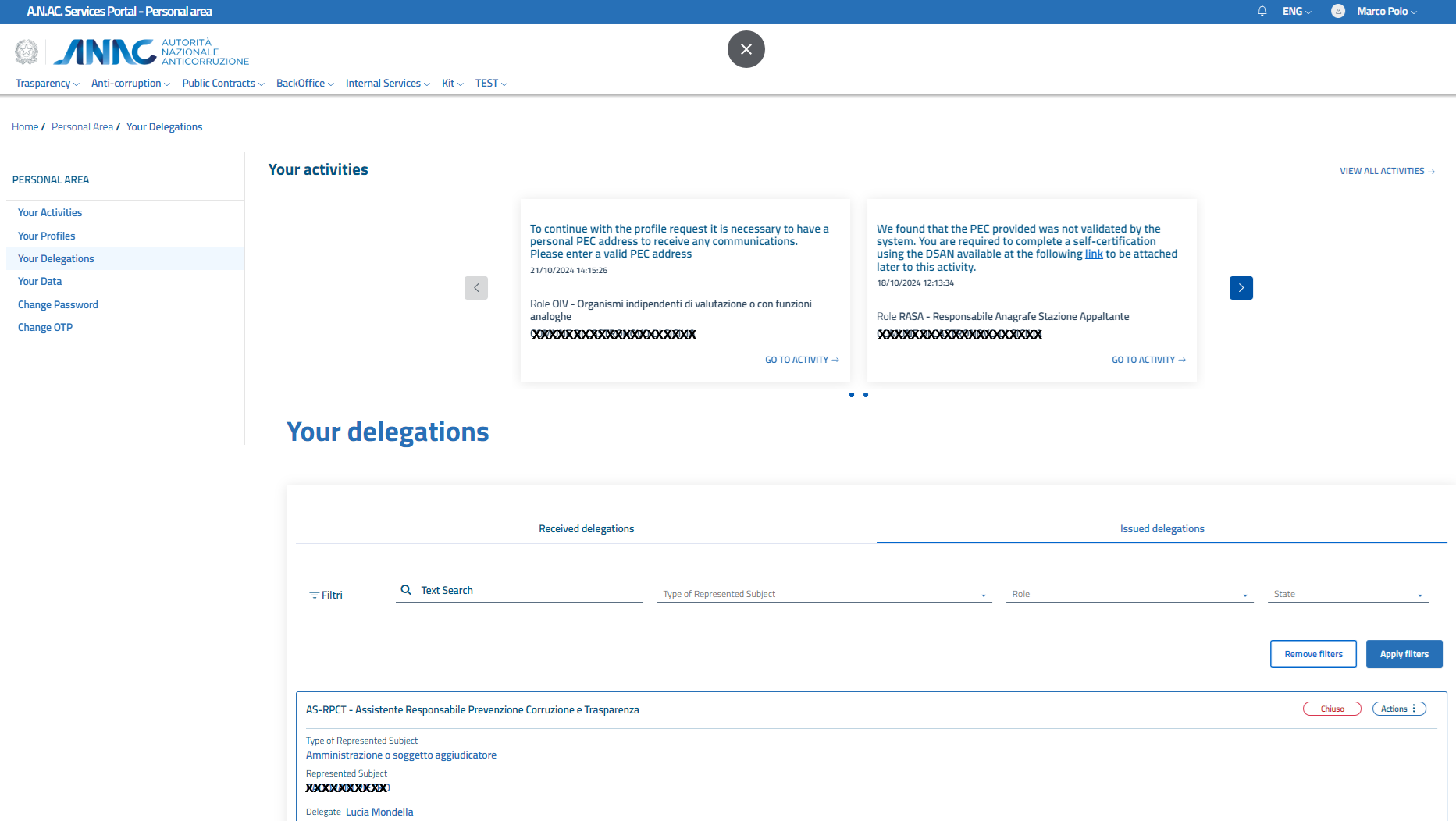
Figure 7.2 - Your Delegations - proxies released
Action - Detail and history
By selecting the Detail and history action you access a page that displays in 2 tabs detailed information on the delegation and the history of the events that have occurred in descending order of date (from the most recent to the oldest).
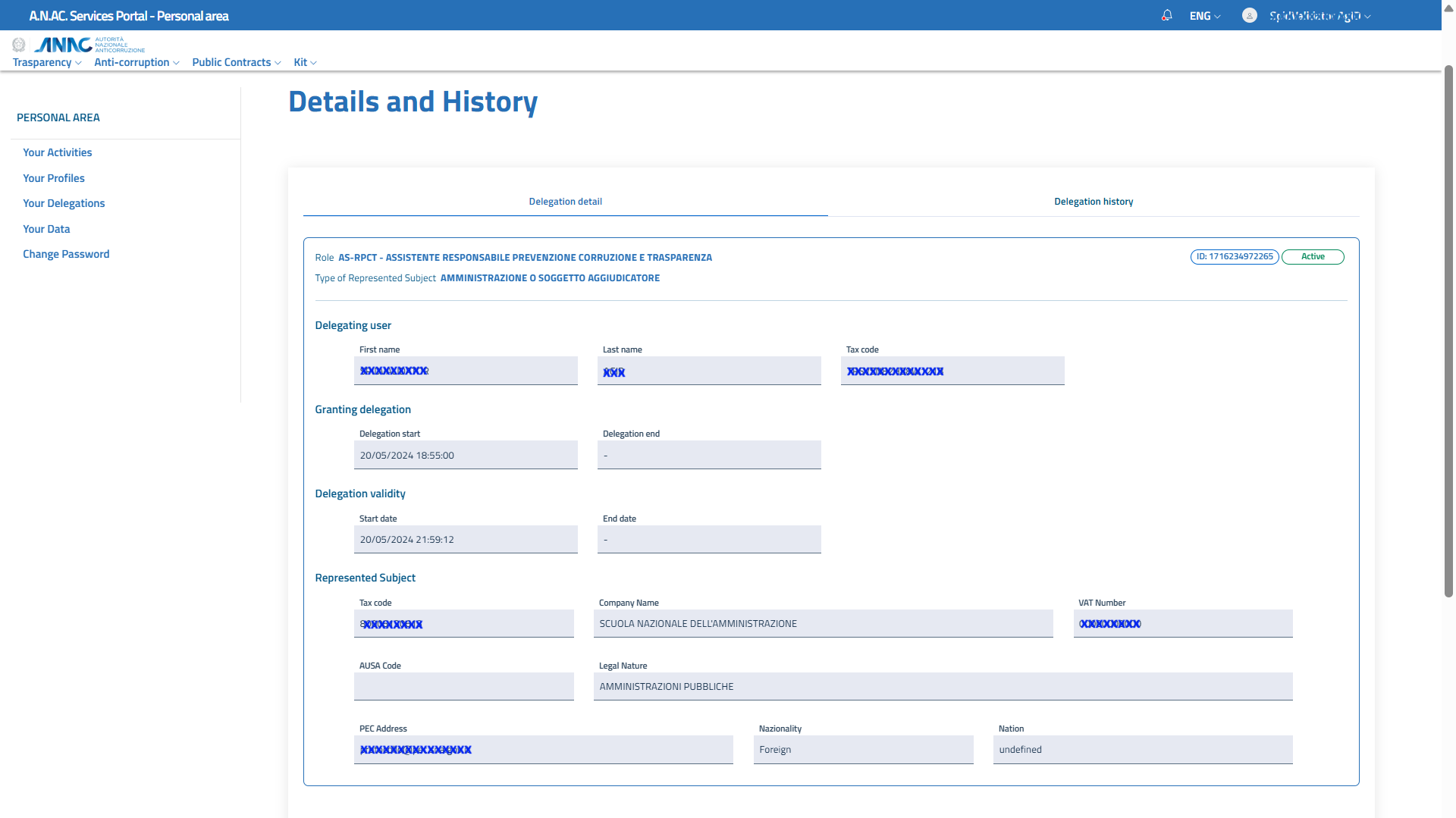
Figure 8.1 - Delegation detail
In the delegation details section, the Granting delegation and Delegation validity dates are visible, corresponding to the initial start and end dates of the delegation request and the dates corresponding to the actual start and end dates.
In the Granting delegation section are visibile the following dates:
- Start Date: corresponding to the start date entered during delegation creation
- End Date: corresponding to the end date entered during delegation creation
The Delegation Validity section is populated based on the delegation status in the following ways:
- In approval: start date and end date are populated with the placeholder -
- Active: only the delegation start date is displayed
- Suspended: upon suspension, the start date remains unchanged and the end date corresponds to the suspension date
- Closed: the start date remains unchanged, the end date corresponds to the closure date.
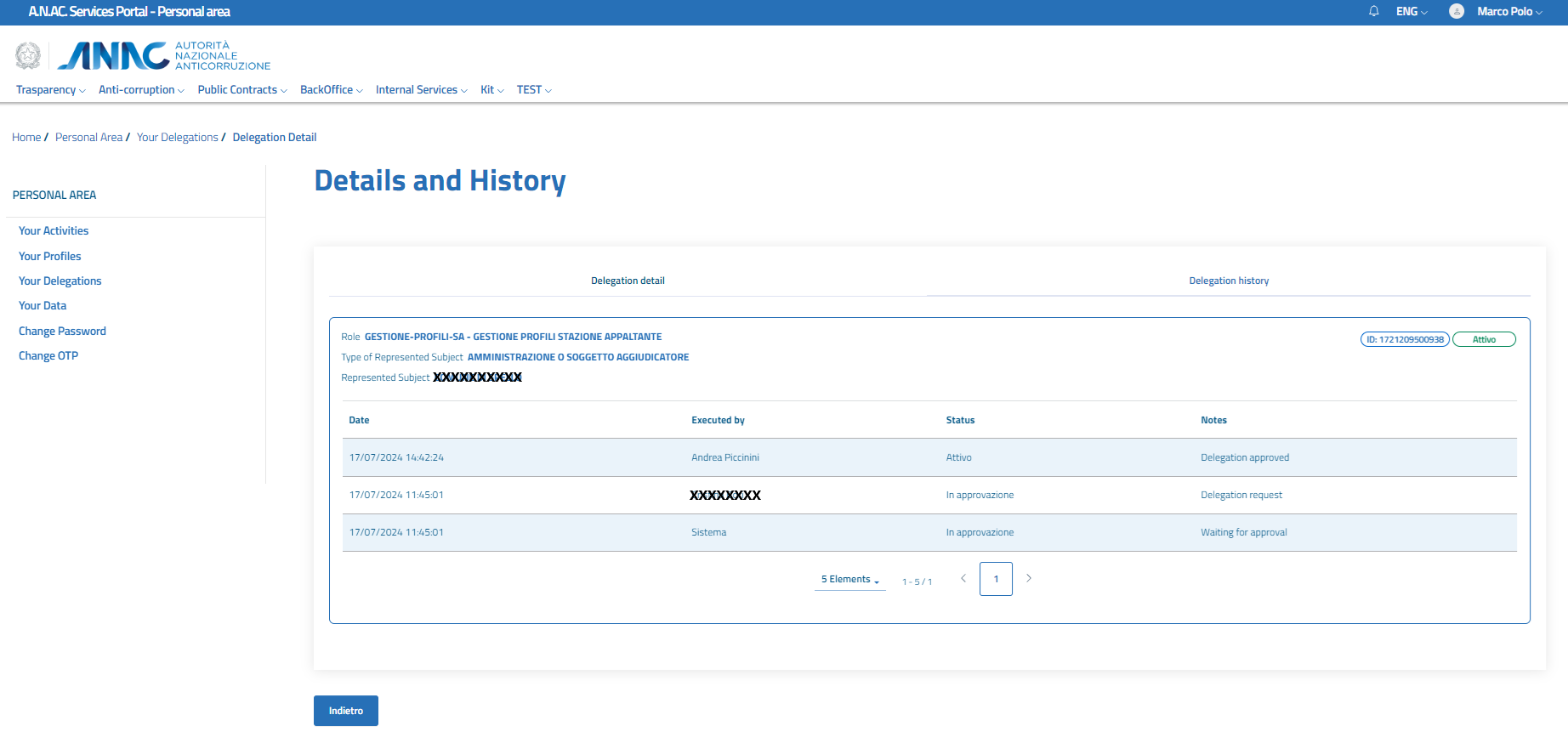
Figure 8.2 - Delegation history
On this page there are buttons with the actions available for the released delegation.
For example, for a delegation in active state, as shown in the image, the Suspend, Close and Modify buttons may be available.
Action - Change delegation
By selecting the Modify action, available only for issued delegations in state active or in approval, you access the screen that allows you to modify the delegation end date. For delegations that have not yet been approved, the start date of the delegation can also be changed.
Action - Suspend delegation
Selecting the Suspend action, available only for released delegations, displays a confirmation message "Are you sure you want to suspend the delegation?" with the Cancel and Close buttons
Action - Close delegation
Selecting the Close action, available only for released delegations in state active, in approval or suspended and for issued delegations in state active, displays a confirmation message "Are you sure you want to close the delegation?" with the Cancel and Close buttons
Your Data
The Your Data functionality displays the user's personal and contact information with the possibility of modifying the contacts (Email, PEC, Phone and Cell Phone) or possibly deleting your user account
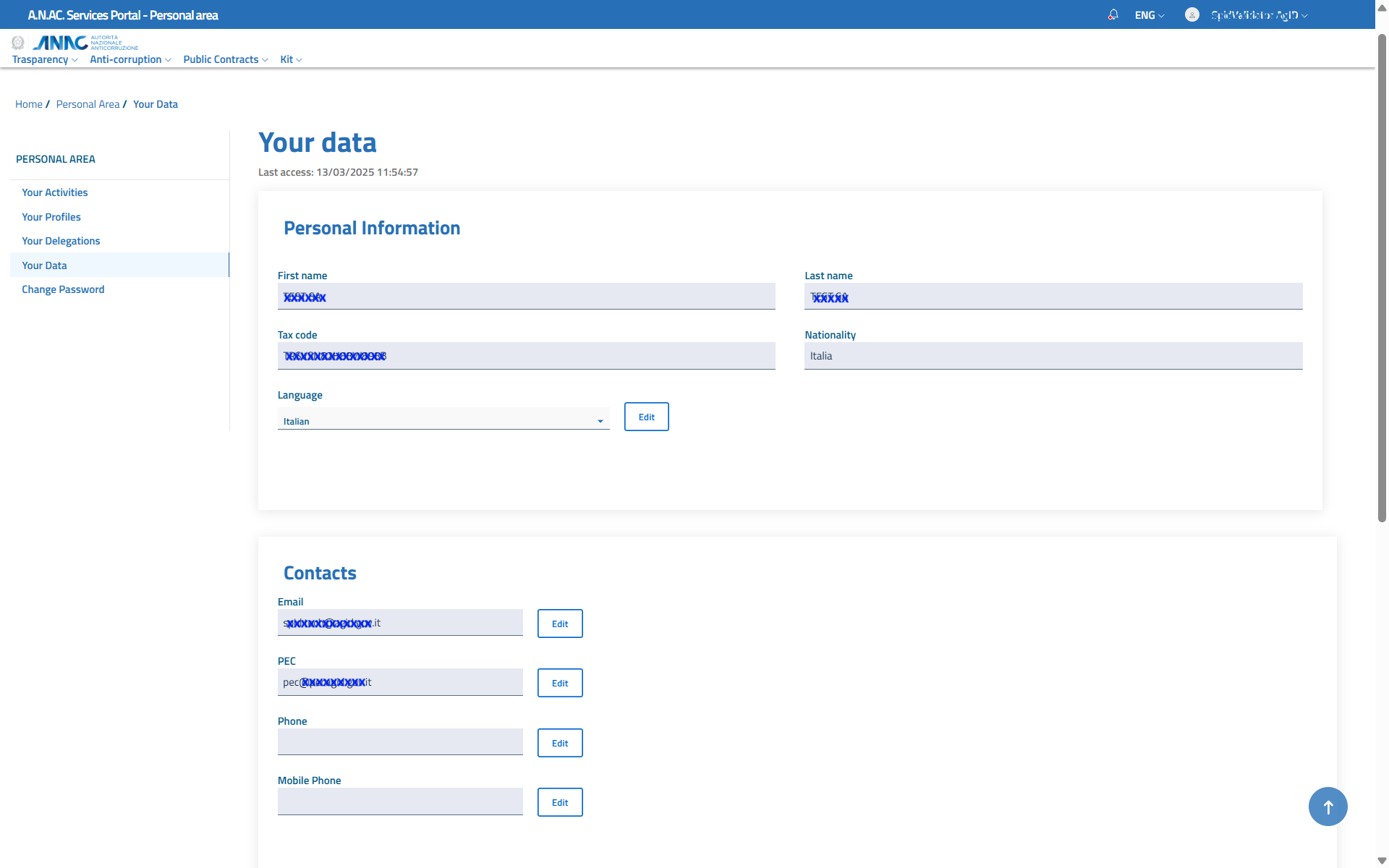
Figure 9 - Your Data
Your Data - modify personal data
A user who does not have an Italian tax code and cannot use eIDAS via the Edit Data button located at the top right of their personal data can update the name, surname and country fields.
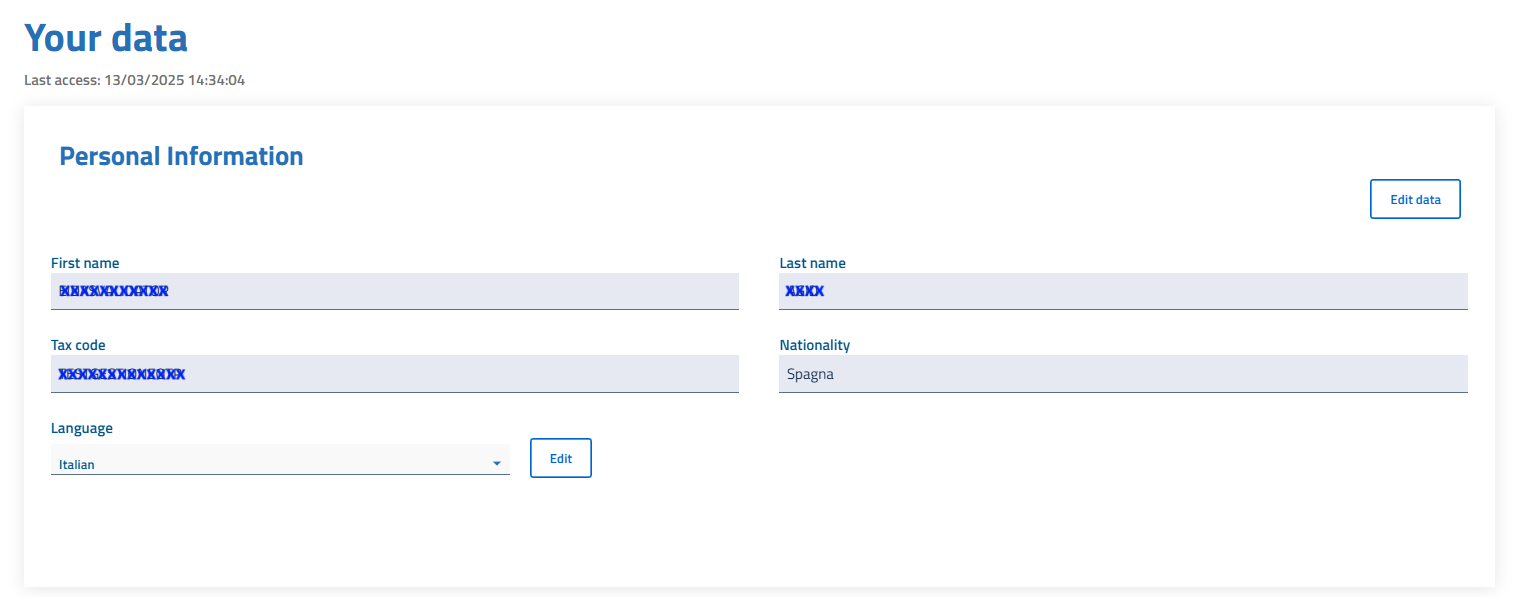
Figure 9.1 - Your Data - modify personal data fields
Your Data - modify notification language
Through the Language select located below the personal data, you can change the language in which notifications/emails/PEC are sent.
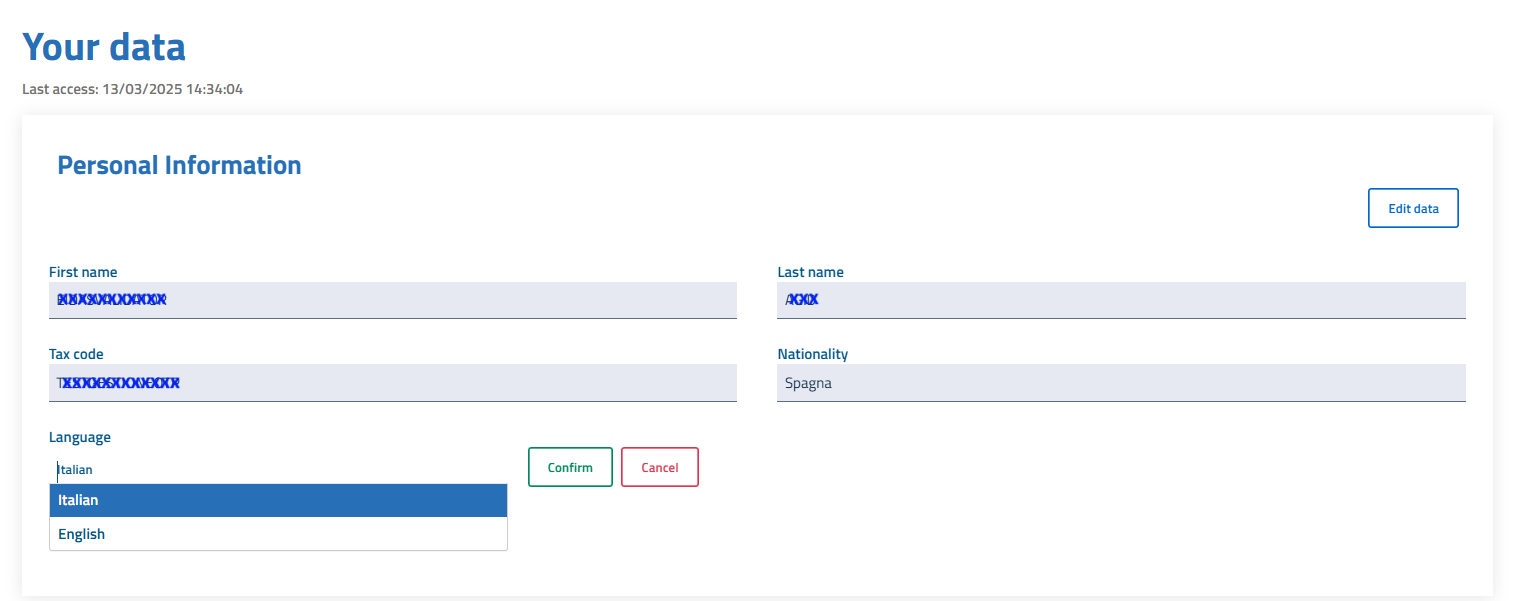
Figure 9.2 - Your Data - modify notification language
Your Data - edit Email
Using the Edit button on the right of the Email it is possible to insert a new Email and Confirm.
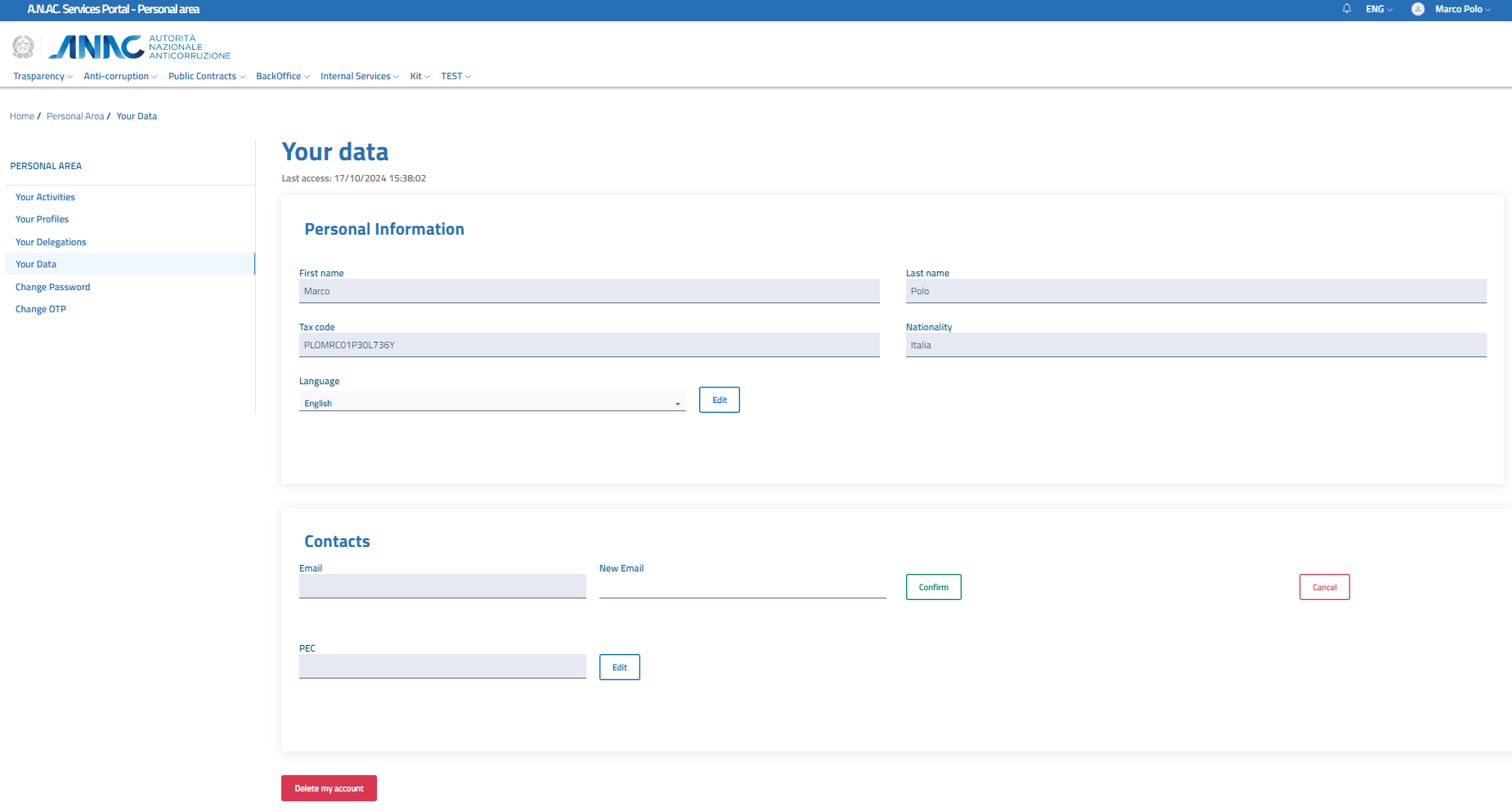
Figure 10.1 - Your Data - change Email
Once the Confirm button is pressed, a pin is sent to the new address and this pin must be used by the user for the next verification phase, which will make the change permanent.
The changes made to the contacts will be made available following the validation process.
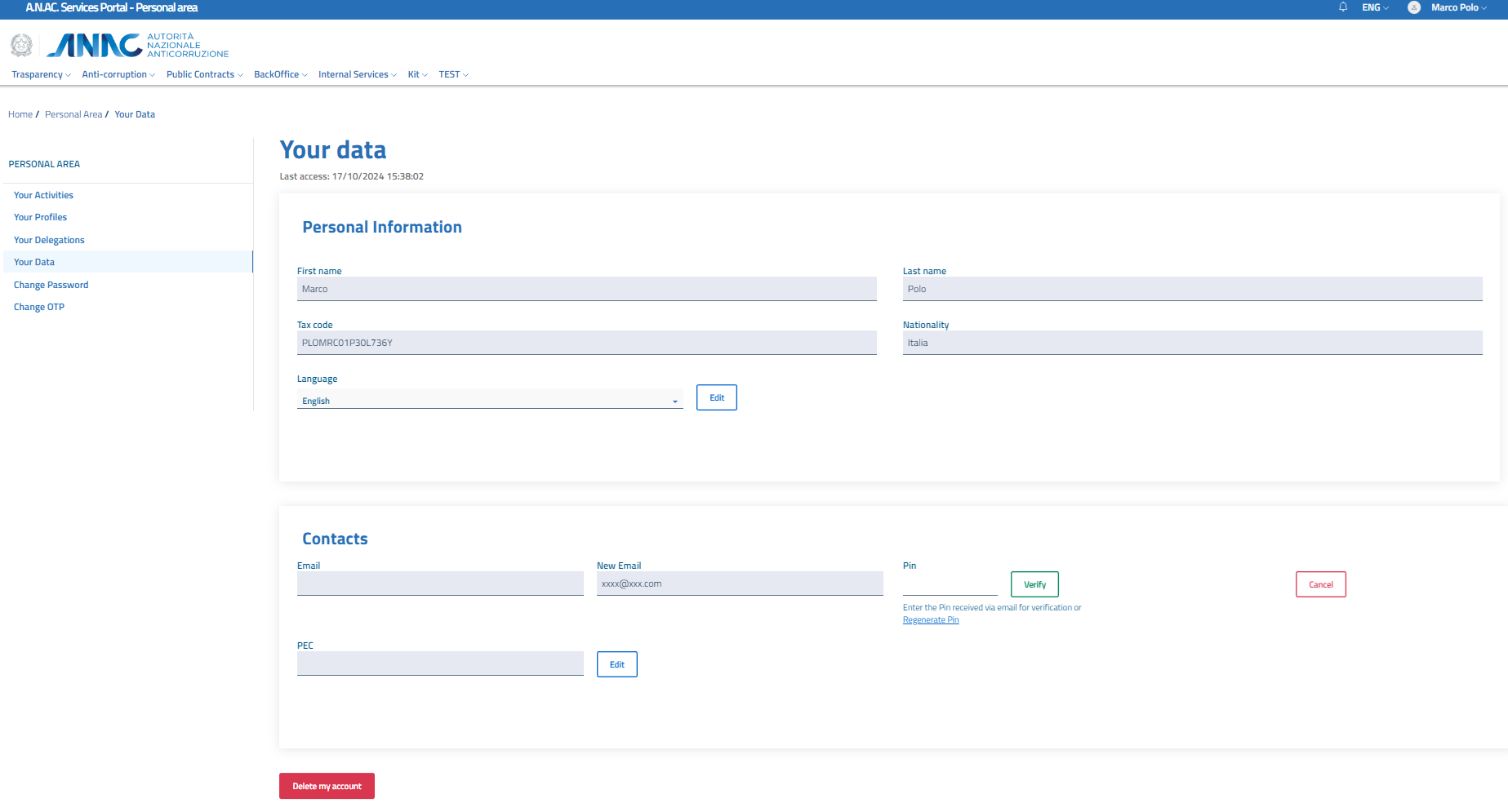
Figure 10.2 - Your Data - change Email
Your Data - edit PEC
Using the Edit button on the right of the PEC it is possible to insert a new PEC and Confirm.
The process is equivalent to that of editing emails.
Your Data - edit Phone and Cell Phone
Using the Edit button on the right of the Phone and Cell Phone is possible to insert a new Phone and Cell Phone and Confirm..
The process doesen't need any confim pin.
Your Data - delete user
Using the Delete my account button at the bottom it is possible to permanently delete the account and all the profiles/delegations associated with it.
A confirmation modal appears where you need to type your tax code to enable the Confirm button.
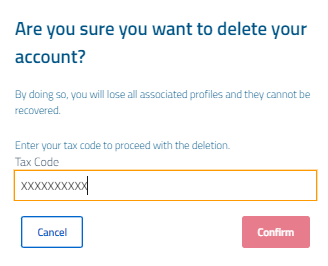
Figure 11 - Your Data - change Email
NB: to reactivate the user it is necessary to proceed with a new registration using the appropriate form or by logging in with a digital identity (SPID, CIE, CNS and IDAS)
Change Password
The Change Password feature allows you to access the portal functionality that allows you to set a new access password
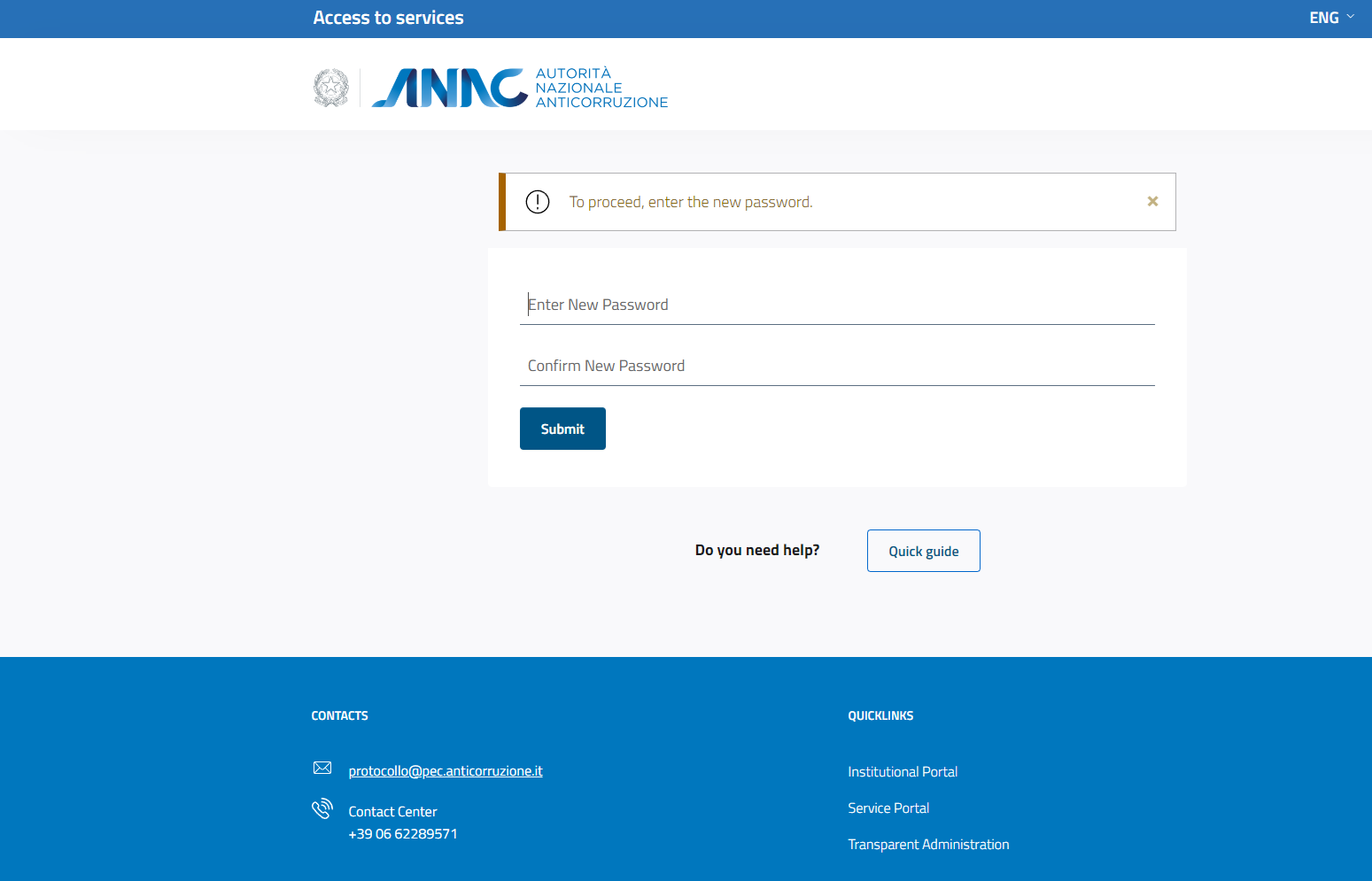 Figure 12 - Change Password
Change OTP
La funzionalità Modifica OTP consente di inserire un nuovo dispositivo 2FA da associare alla propria utenza o di cancellarne uno associato in precedenza.
Si precisa che è possibile associare un solo dispositivo 2FA alla propria utenza. Di conseguenza l'aggiunta di un nuovo OTP sostituisce il dispositivo associato in precedenza.
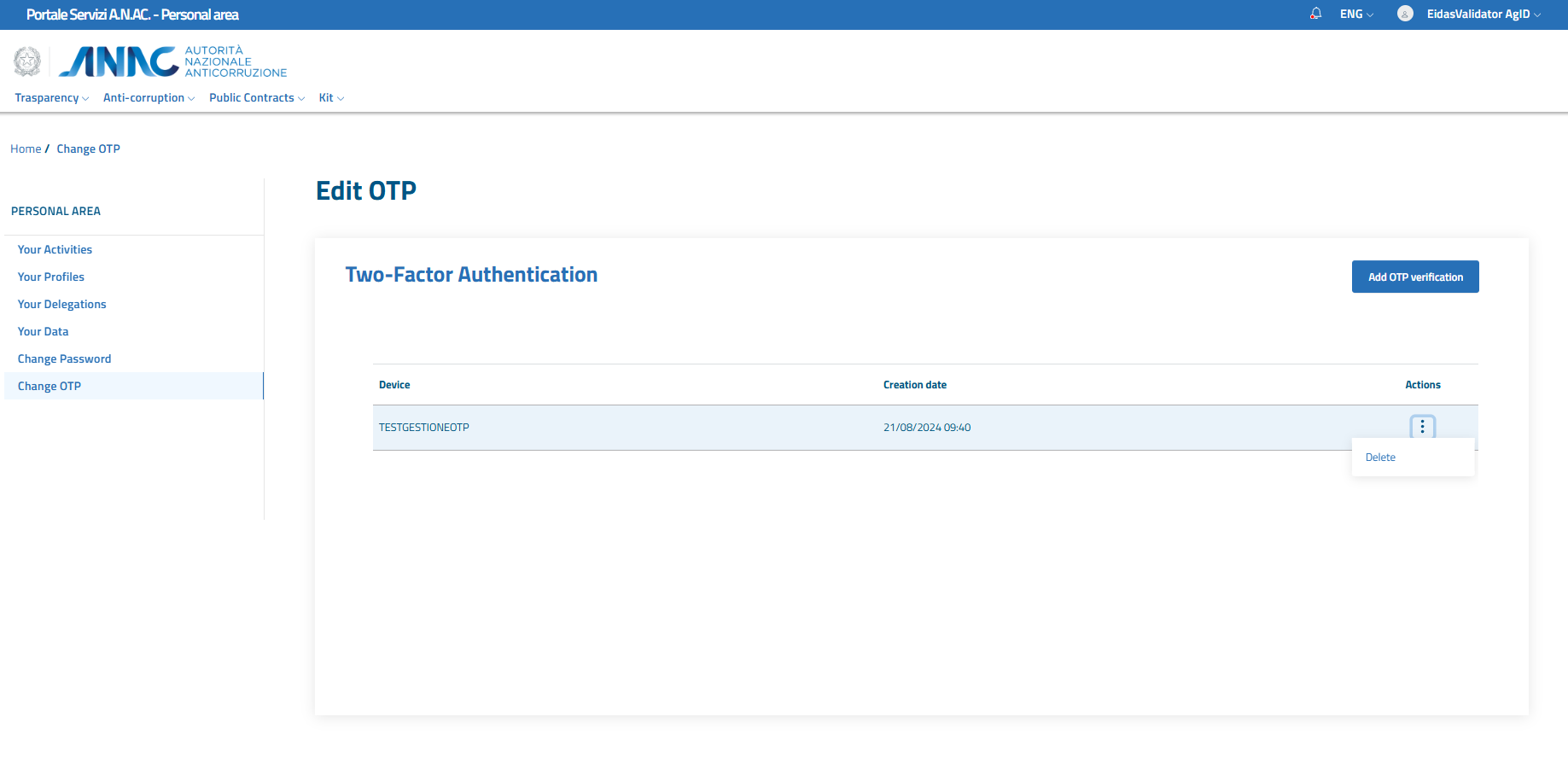 Figure 13 - Edit OTP