
Access to services
Version: 1.5.0
Update date: 06/14/2024
Access to the services of the National Anti-Corruption Authority can be done through one of the following methods:
- ANAC Credentials
- SPID, the Public Digital Identity System
- CIE, the Electronic Identity Card
- EIDAS, for all citizens in possession of a digital identity issued by a European Union member state
- CNS, National Services Card
Log in with ANAC credentials
One way to access is through "ANAC Credentials", consisting of a username and password.
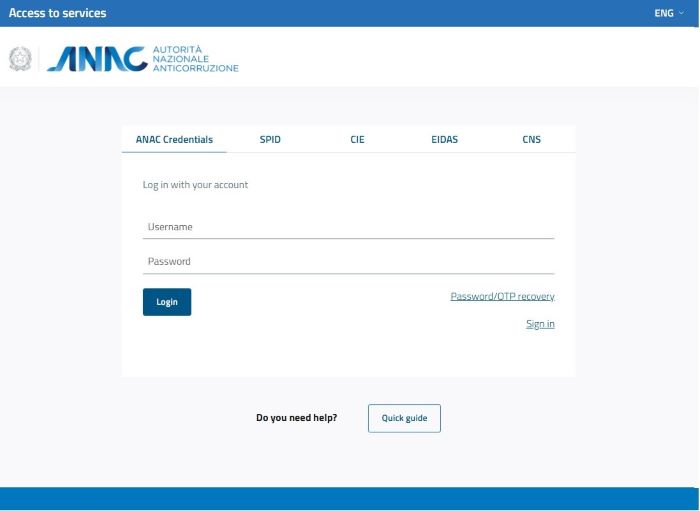
Image 1 - ANAC Credentials
To obtain these credentials, you must be registered with the Authority's portal. This operation allows you to have access credentials consisting of a user identifier, called Username, and the corresponding password: the identifier corresponds to the fiscal code entered at the time of registration.
Furthermore, during the first access via SPID or CIE, "ANAC Credentials" are also created for future access to ANAC's online services not yet integrated with digital identities, where the username corresponds to the user's fiscal code logging in, while the password is requested from the user.
Log in with ANAC credentials and OTP
Users who do not have an Italian fiscal code (tax code) and cannot use eIDAS to access services that require a Level of Assurance (LoA) access of at least 3, can use two-factor authentication (2FA) by providing their ANAC Credentials (username and password) and entering a temporary OTP (One Time Password).

Image 2 - ANAC Credentials and OTP
Only in the case of the first access with ANAC Credentials and OTP, the system presents:
- the OTP configuration page
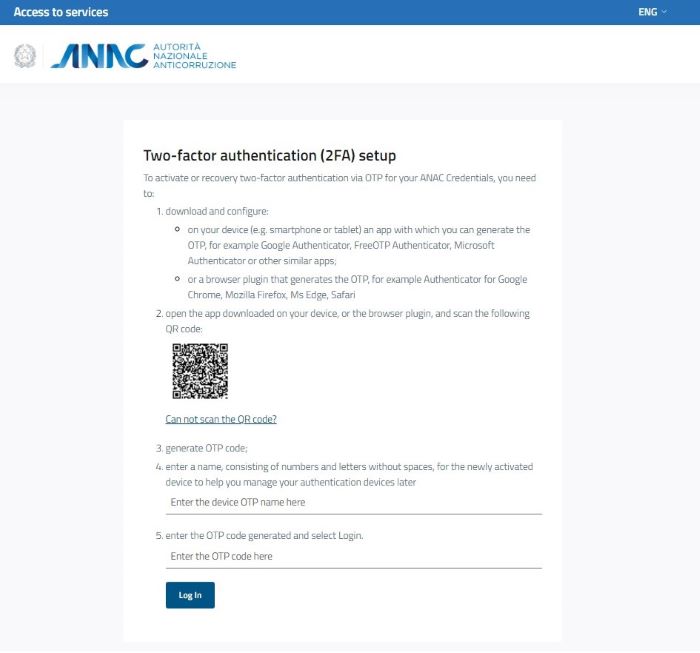
Image 3 - OTP Configuration
In the case of OTP already configured, the system presents:
- the OTP code entry page
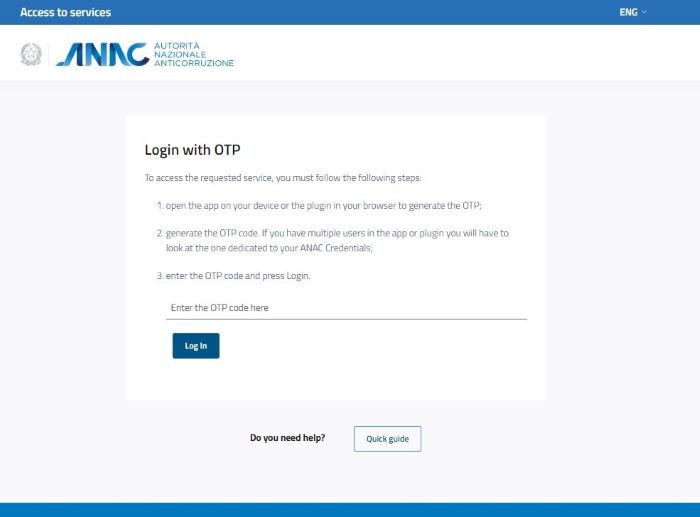
Image 4 - Insert OTP
If the authentication process is successfully completed, you will be redirected to the home page of the selected service.
In case errors occur during OTP configuration, the system displays an error message.
To proceed, it is necessary to scan the QR Code again or follow the manual procedure. It is recommended to remove devices from the app or plugin whose registration was unsuccessful.
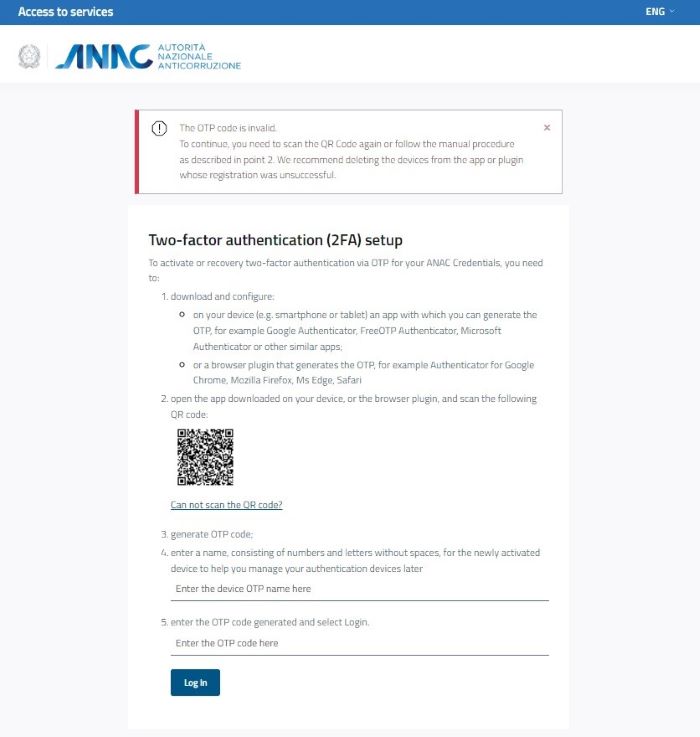
Image 5 - recovery otp error
In case errors occur during OTP entry phase, the system presents an error message.
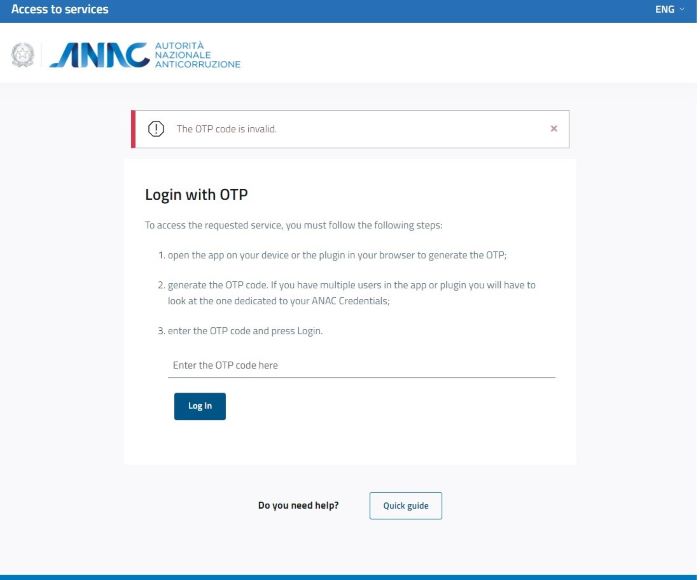
Image 6 - insert otp error
Password and OTP recovery
From the ANAC Services Access page, the unauthenticated user can activate the recovery of the user password and OTP (if configured) through the link "password/OTP recovery"
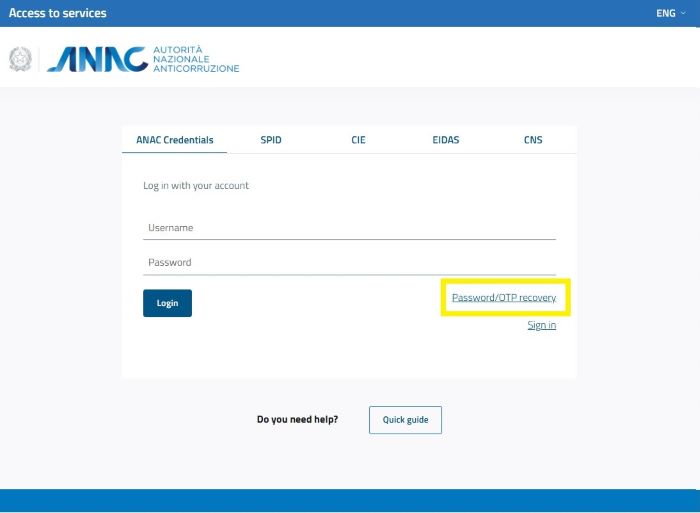
Image 7 - password/otp recovery link
Once the link is selected, the system displays the form to request the user's password/OTP recovery.
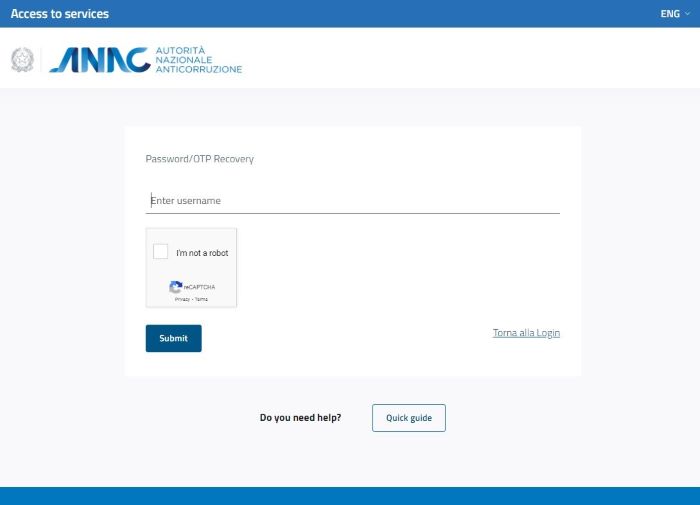
Image 8 - password/otp recovery request
To proceed, it is necessary to enter your username, select the security code, and finally click the "Send" button. The system sends an email to the address associated with the just-entered username, which contains instructions to complete the recovery.
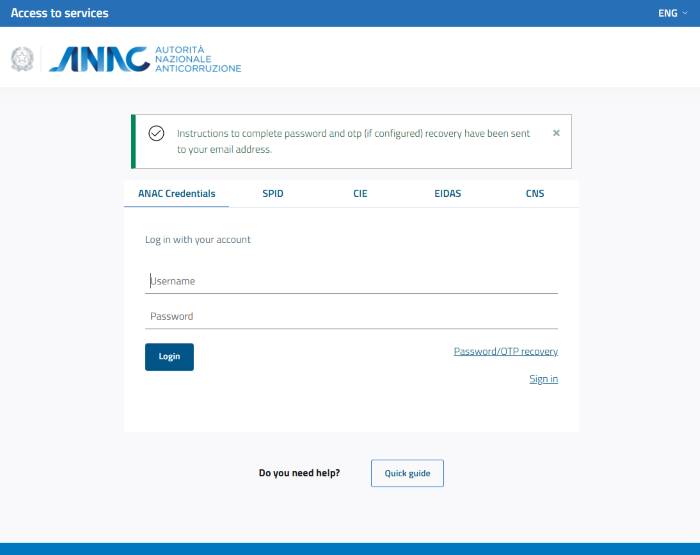
Image 9 - password/otp recovery email
By following the link received via email, the user will access the form for entering the new password which will allow him to access the system again.
Through the insertion of the new password, the user will be able to update the password and then access the system again.
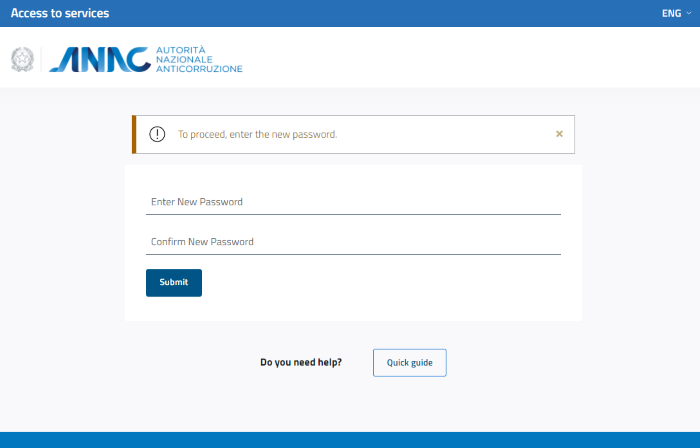
Image 10 - Insert new password/otp
Only in the case of configured OTP, the system additionally presents the password update page:
- the OTP recovery page
Image 11 - Insert new otp
If the recovery process is successfully completed, you will be redirected to the home page of the selected service.
If errors occur during the password recovery process, the system displays an error message.
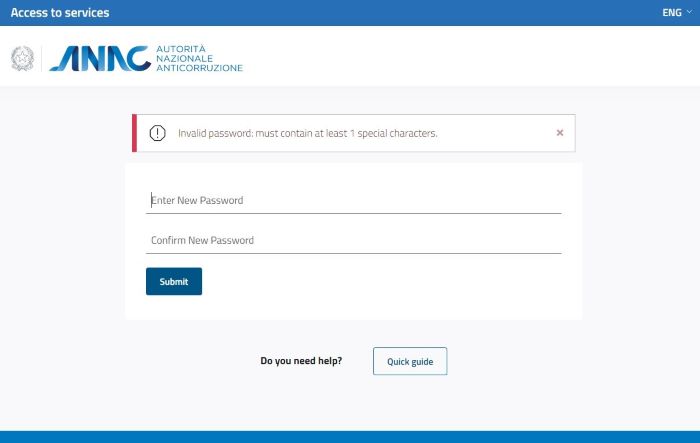
Image 12 - recovery password error
In case errors occur during OTP recovery phase, the system displays an error message.
To proceed, it is necessary to scan the QR Code again or follow the manual procedure. It is recommended to remove the devices from the app or plugin whose registration was unsuccessful.
Image 13 - recovery otp error
Log in with SPID
It is the Public Digital Identity System that allows using online services of the Public Administration and accredited private entities with a unique Digital Identity (username and password).
The types of SPID currently defined by AgID are:
- SPID natural person (type 1)
- SPID legal person (type 2)
- SPID for professional use by the natural person (type 3)
- SPID for professional use of the legal entity (type 4)
Please note that authentication with type 2 legal person SPID is not foreseen.
If you want to access the service via SPID, select the "SPID" tab.
To access, choose the type of SPID with which you want to access using the radio button:
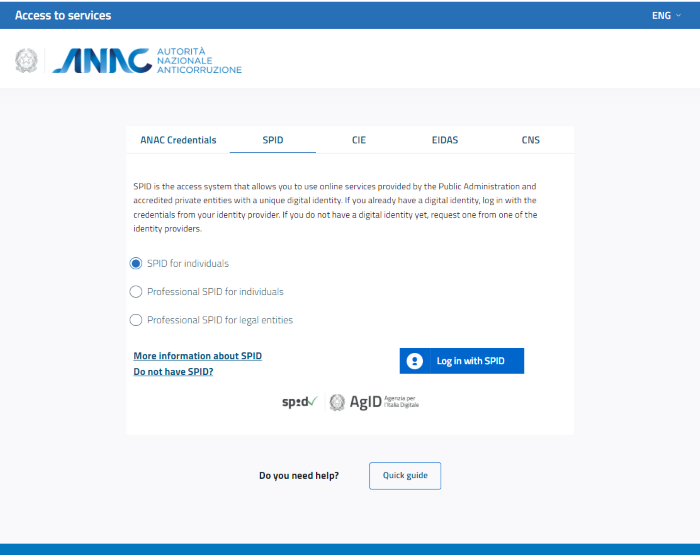
Image 15 - SPID Authentication Selection
then select the "Log in with SPID" button and choose the identity provider that issued the digital identity, and proceed with authentication.
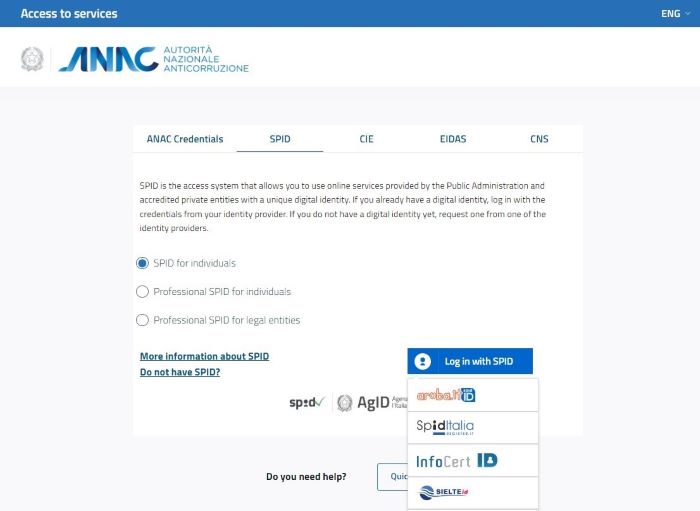
Image 16 - Identity Provider Selection SPID
Only in the case of first access with SPID, to create "ANAC Credentials" for future access to ANAC's online services not yet integrated with digital identities, the system presents:
- The page for accepting ANAC's terms and conditions
- The page for entering a valid password
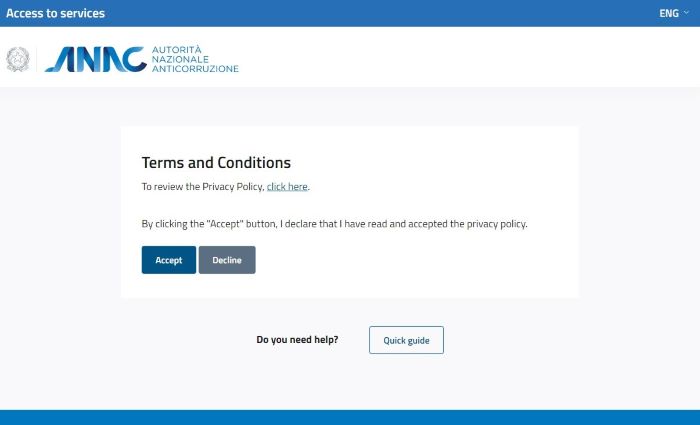
Image 17 - Terms and Conditions
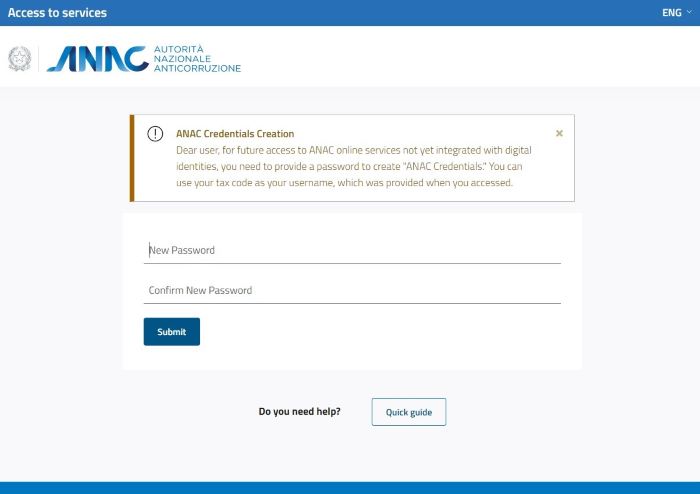
Image 18 - Password Creation
If the authentication process concludes successfully, you will be redirected to the selected service's homepage.
In case of errors during authentication, the system displays an error message.
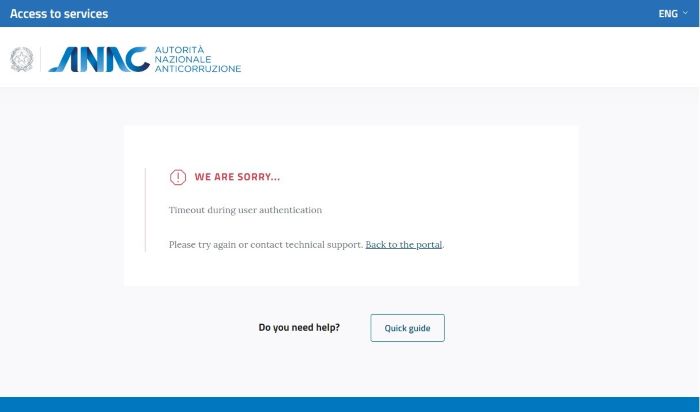
Image 9 - Example Error Message
Log in with CIE
The Electronic Identity Card (CIE) is the identity document for Italian citizens issued by the Ministry of the Interior and produced by the State Printing and Mint Institute. Thanks to sophisticated security and anti-counterfeiting features, it allows verification of the holder's identity and access to online services of Public Administrations both in Italy and in European Union countries.
If you want to access the service via CIE, select the "CIE" tab.
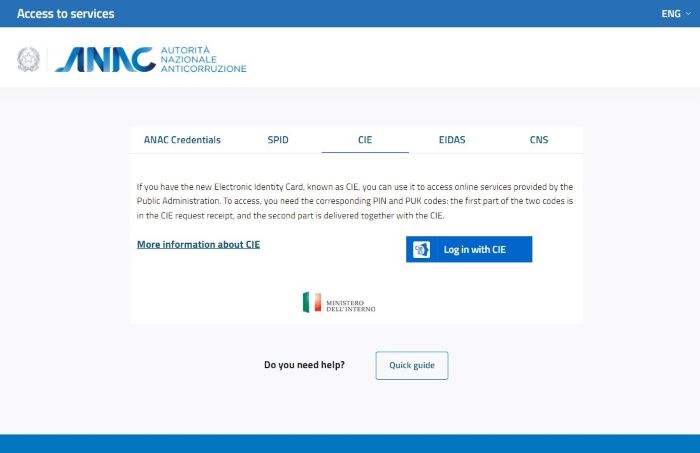
Image 21 - CIE Authentication
To access, select the "Log in with CIE" button and proceed with authentication.
Only in the case of first access with CIE, to create "ANAC Credentials" for future access to ANAC's online services not yet integrated with digital identities, the system presents:
- The page for entering a valid email
- The page for accepting ANAC's terms and conditions
- The page for entering a valid password
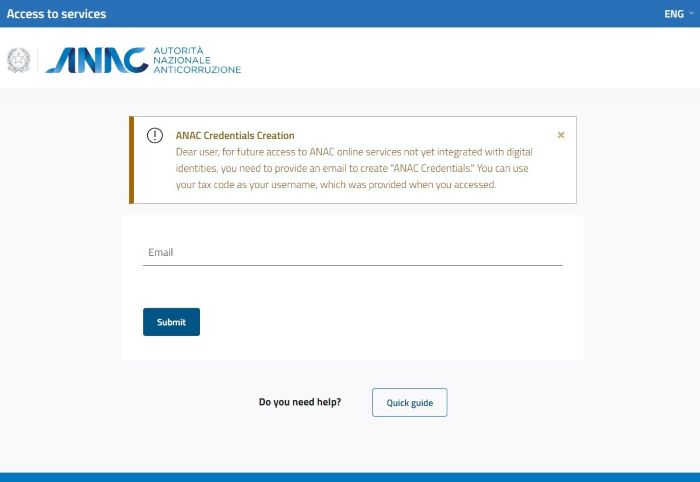
Image 22 - Email Entry
Image 23 - Terms and Conditions
Image 24 - Password Creation
If the authentication process concludes successfully, you will be redirected to the selected service's homepage.
In case of errors during authentication, the system displays an error message.
Image 25 - Example Error Message
Log in with eIDAS

The eIDAS regulation provides a legal framework for electronic interactions among citizens, businesses, and public administrations, enhancing the security and effectiveness of online services and e-business transactions in the European Union. The Italian node, through the "Access with eIDAS" button, enables cross-border interoperability of digital identities (eID) and its implementation allows Italian eIDs to circulate among the member states of the European Union.
If you wish to access the service via eIDAS, select the "EIDAS" tab.
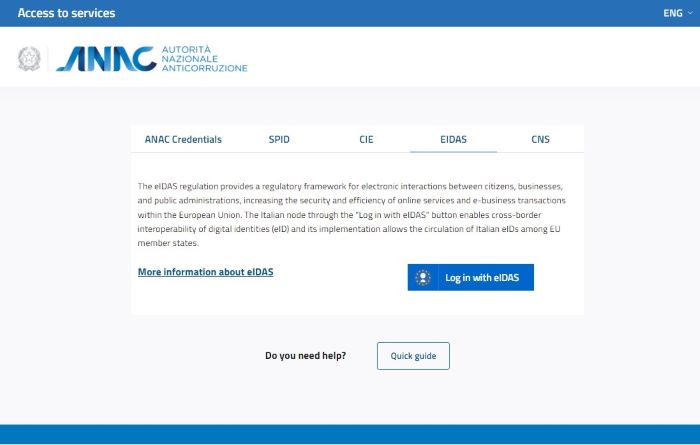
Image 27 - eIDAS Authentication
To access, select the "Log in with eIDAS" button and proceed with authentication.
Only in the case of access with eIDAS using a Uniqueness Identifier Code not present in the ANAC systems, in order to create "ANAC Credentials" or associate the ones you already have, for future access to ANAC's online services that are not yet integrated with digital identities, the system presents:
- The credentials selection page
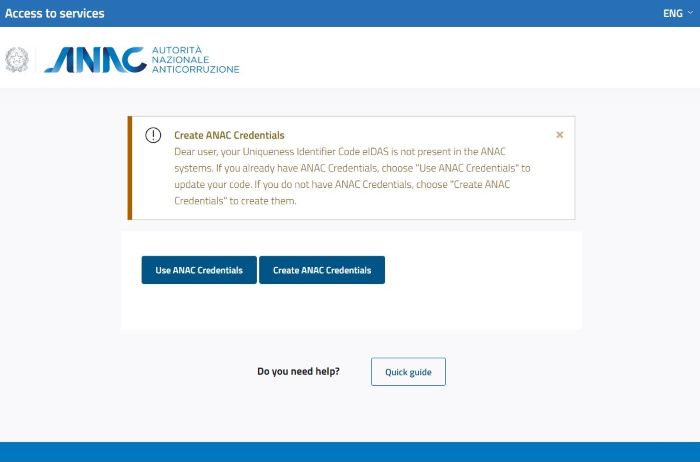
Image 28 - Credential Selection
In the case of choosing "Use ANAC Credentials", the system presents:
- The authentication page
- The page for associating the eIDAS account with 'ANAC Credentials'
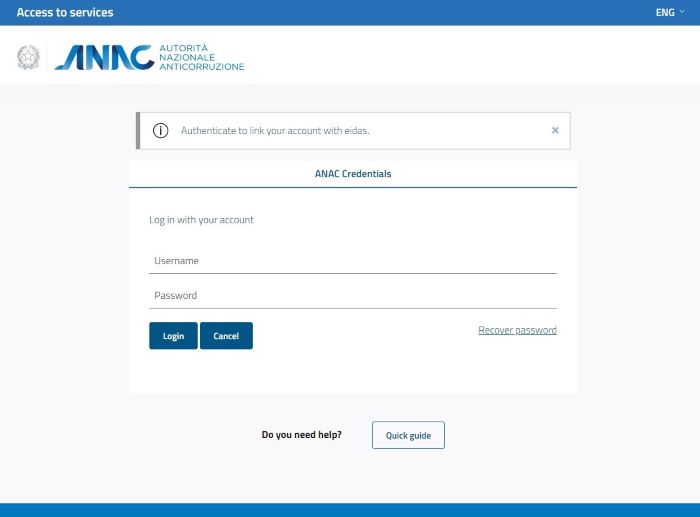
Image 29 - Authentication Request
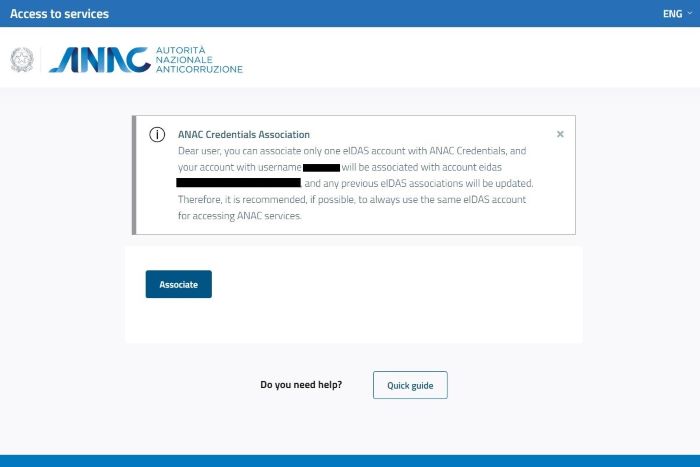
Image 30 - Confirmation of eIDAS Account Association
In the case of choosing "Create ANAC Credentials" the system presents:
- The page for entering a valid username and email
- The page for associating the eIDAS account with "ANAC Credentials"
- The page for accepting ANAC's terms and conditions
- The page for entering a valid password
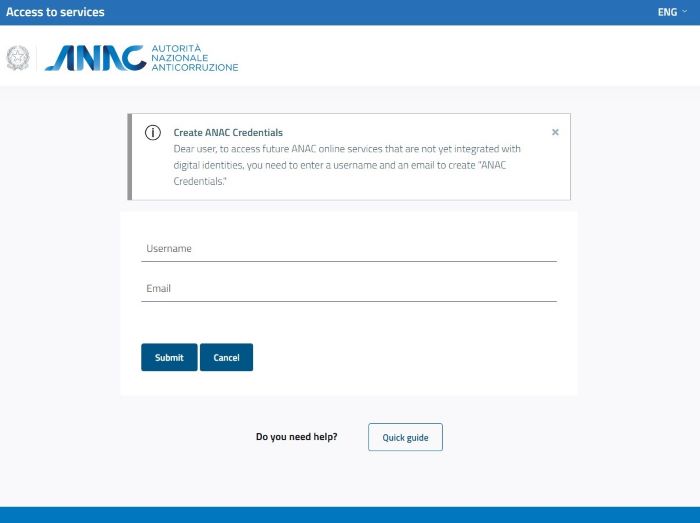
Image 31 - Username and Email Entry
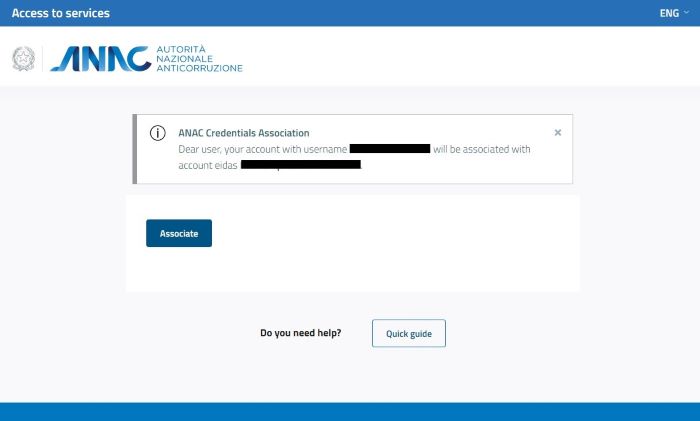
Image 32 - Confirmation of eIDAS Account Association
Image 33 - Terms and Conditions
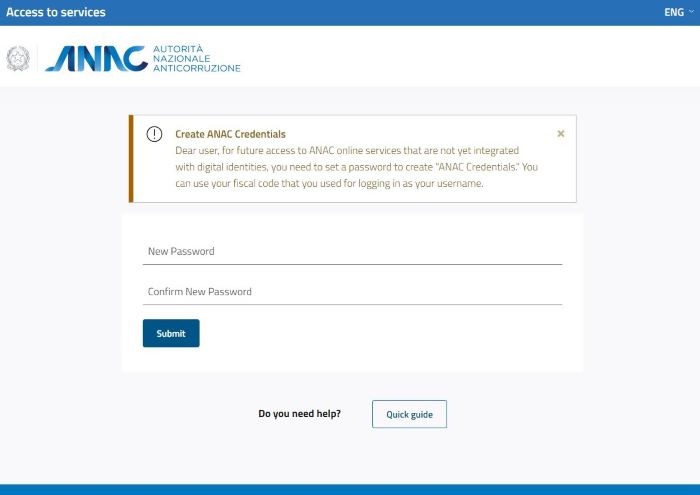
Image 34 - Password Creation
If the authentication process concludes successfully, you will be redirected to the selected service's homepage.
In case of errors during authentication, the system displays an error message.
Image 35 - Example Error Message
Log in con CNS
The National Service Card (CNS) is an online identification tool that allows the use of public administration services.
The CNS does not contain the photo of the holder and does not require particular security requirements for the plastic support.
The digital certificate, contained within the CNS, is the electronic equivalent of an identity document (such as a passport or identity card) and digitally identifies a natural person or entity.
If you wish to access the service via CNS, select the "CNS" tab.
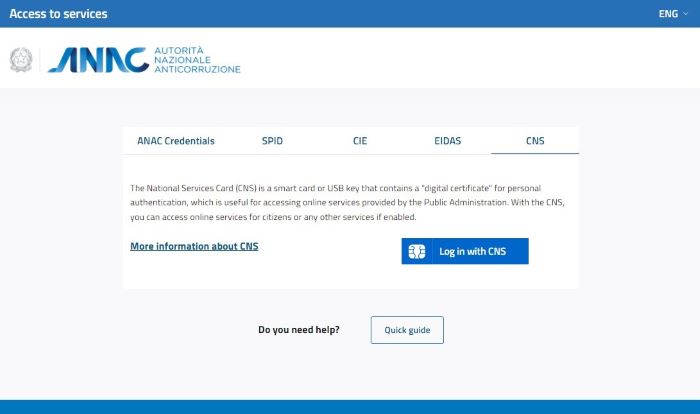
Image 37 - CNS Authentication
Before starting the authentication process, check the following prerequisites:
- have an active CNS
- access from a workstation that allows reading the CNS
- have installed the CNS drivers
- having inserted the CNS into the smart card reader or USB port
Once the prerequisites have been verified, to access select the "Enter with CNS" button and proceed with authentication.
The browser used will show a popup window containing the list of all the certificates present on the computer and in the CNS. At this point, select the authentication certificate present in the CNS, which has the tax code among the identification elements, and press OK; you will be asked to enter your CNS PIN code.
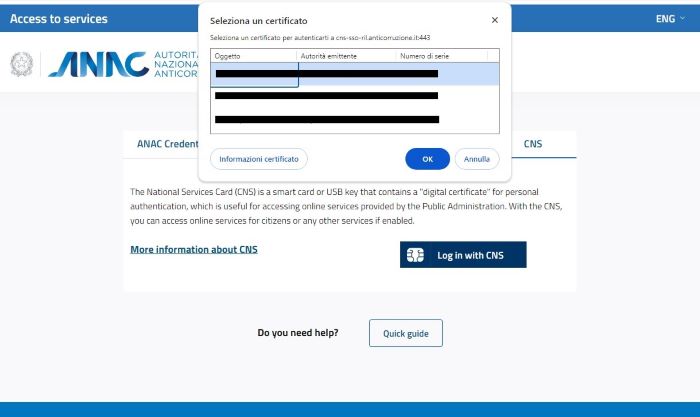
Image 38 - Certificate choice popup
This certificate shows your tax code as the first part of your identification.
Once you have chosen the correct certificate, press the ok button and wait for the authentication process to complete.
Only in the case of first access with CNS, in order to create "ANAC Credentials" for future access to ANAC online services not yet integrated with digital identities, the system presents:
- the page for entering a valid email
- the page for accepting the ANAC terms and conditions
- the page for entering a valid password
Image 39 - Email Entry
Image 40 - Terms and Conditions
Image 41 - Password creation
If the authentication process completes successfully, you will be redirected to the home page of the selected service.
If errors occur during the authentication phase, the system presents an error message.

Image 42 - Example Error Message
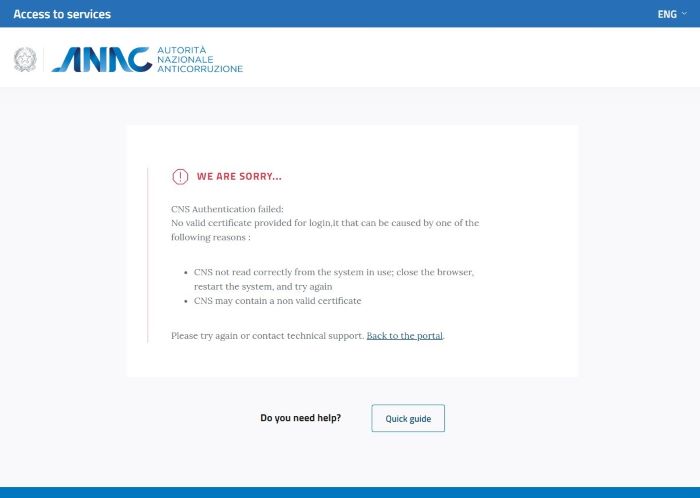
Image 43 - Example Error Message
If the certificate selection popup does not appear or one of the message errors appears,
we recommend that you close your browser, restart your system and check the prerequisites before trying again.
Level of Assurance LoA
For certain restricted-access services of the Authority, a digital identity verification process is required to access, associated with an incremental Level of Assurance (LoA per ISO/IEC 29115 standard) based on the data and information processed for the provided service.
For services that require access with a Level of Assurance (LoA) of at least:
- 2 it is necessary to log in using one of the following authentication methods: ANAC credentials (username and password), SPID and CIE at least level 1, eIDAS at least level "low", CNS
- 3 it is necessary to log in using one of the following authentication methods: ANAC credentials (username and password) and OTP, SPID and CIE at least level 2, eIDAS at least level "substantial", CNS
- 4 it is necessary to log in using one of the following authentication methods: SPID and CIE at least level 3, eIDAS at least level "high", CNS
Please note that the ANAC Credentials (username and password) and OTP mode is only available to users who do not have an Italian tax code and cannot use eIDAS.
When accessing a service, if the following message is presented:
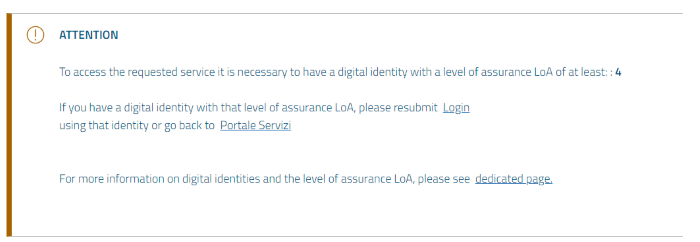
It means that it is not possible to access the service because the currently used authentication method does not meet the minimum required Level of Assurance (LoA).
If you have a digital identity with a Level of Assurance (LoA) at least equal to the required level, you can proceed with access by selecting the 'Login' link and using that digital identity.
More Information
For more information about SPID and CIE digital identity, please visit the dedicated page on the website
For more information about eIDAS digital identity, please visit the dedicated page on the website
For more information about identification via CNS, please visit the dedicated page on the website